Smart tech.
Simple solutions.
Learn how to request help, provide help, use Trusted Helpers, ping a requester, start screen sharing, review Device Checkup history, manage settings, and export diagnostics.
1. What MyTechHelp Is Built For
MyTechHelp is a peer-to-peer help app designed to make remote tech support feel simple, safe, and human. It helps someone requesting help connect with a trusted helper who can guide them through a support session.
Simple for requesters
Requesters can create a secure help code or ask a trusted helper without needing to explain complicated setup steps.
Useful for helpers
Helpers can enter a help code, respond to trusted-helper requests, ping requesters who trust them, view the requester screen, and review session history.
Built for real families
The app is designed for the moments when someone needs help finding the right screen, setting, app, message, or error.
2. Trust, Security, and Control
Requester stays in control
The requester decides when to ask for help, when to start screen sharing, and when to end the session.
View-only help
Helpers can view the requester screen only after the requester starts screen sharing. MyTechHelp does not give helpers remote control.
Secure requests
Help codes expire automatically. Trusted-helper requests can be accepted, declined, cancelled, or allowed to time out.
3. Requesting Help
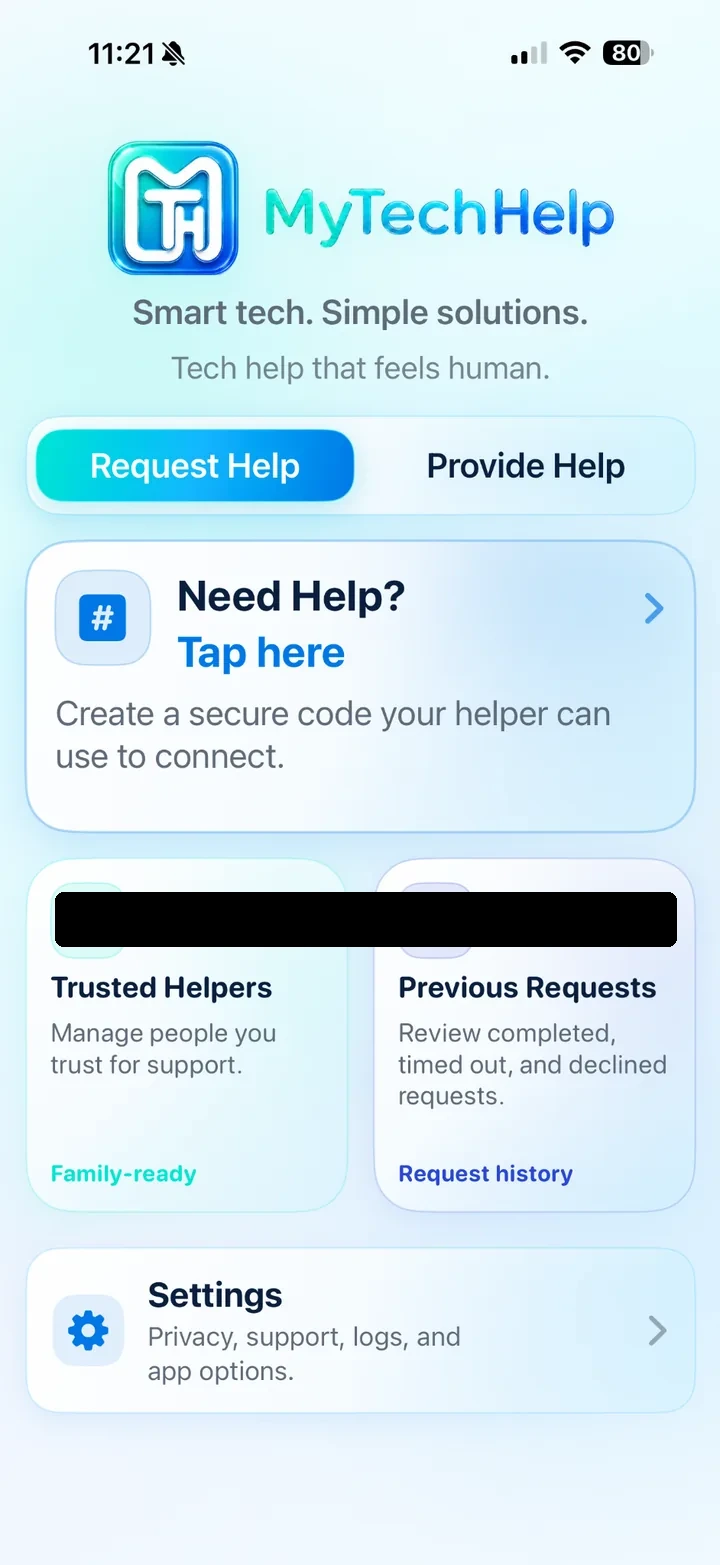
Use the Request Help tab when you need support. You can create a secure code, ask someone already saved as a Trusted Helper, start screen sharing, and review previous requests afterward.
Start on Request Help
Tap Request Help, then choose whether to create a code or contact a trusted helper.
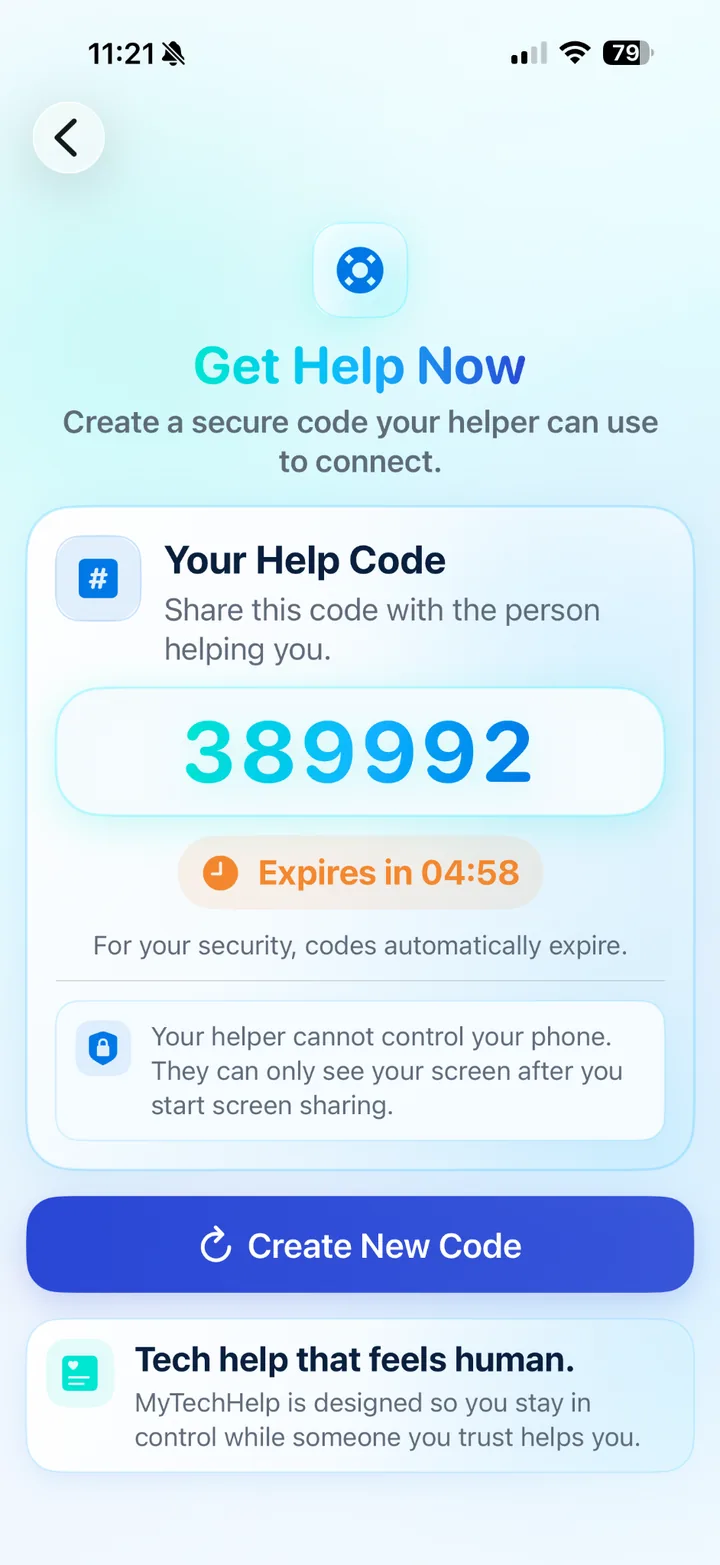
Create a help code
Tap Need Help? / Get Help Now to create a temporary 6-digit code.
Requester steps
4. Trusted Helpers
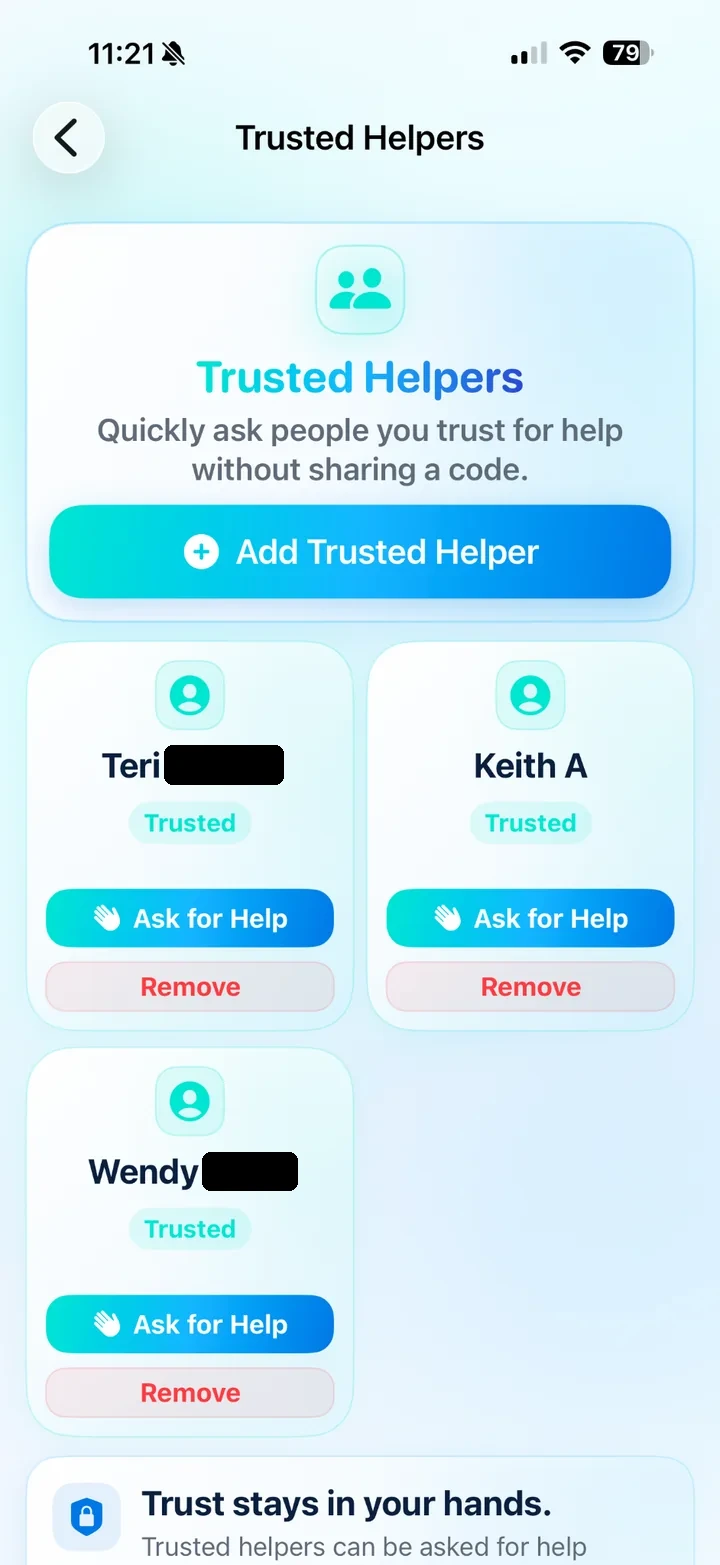
Trusted Helpers are people the requester has chosen for easier support. Only add people you personally know and trust.
Manage trusted helpers
Add or remove trusted helpers from the Trusted Helpers screen.
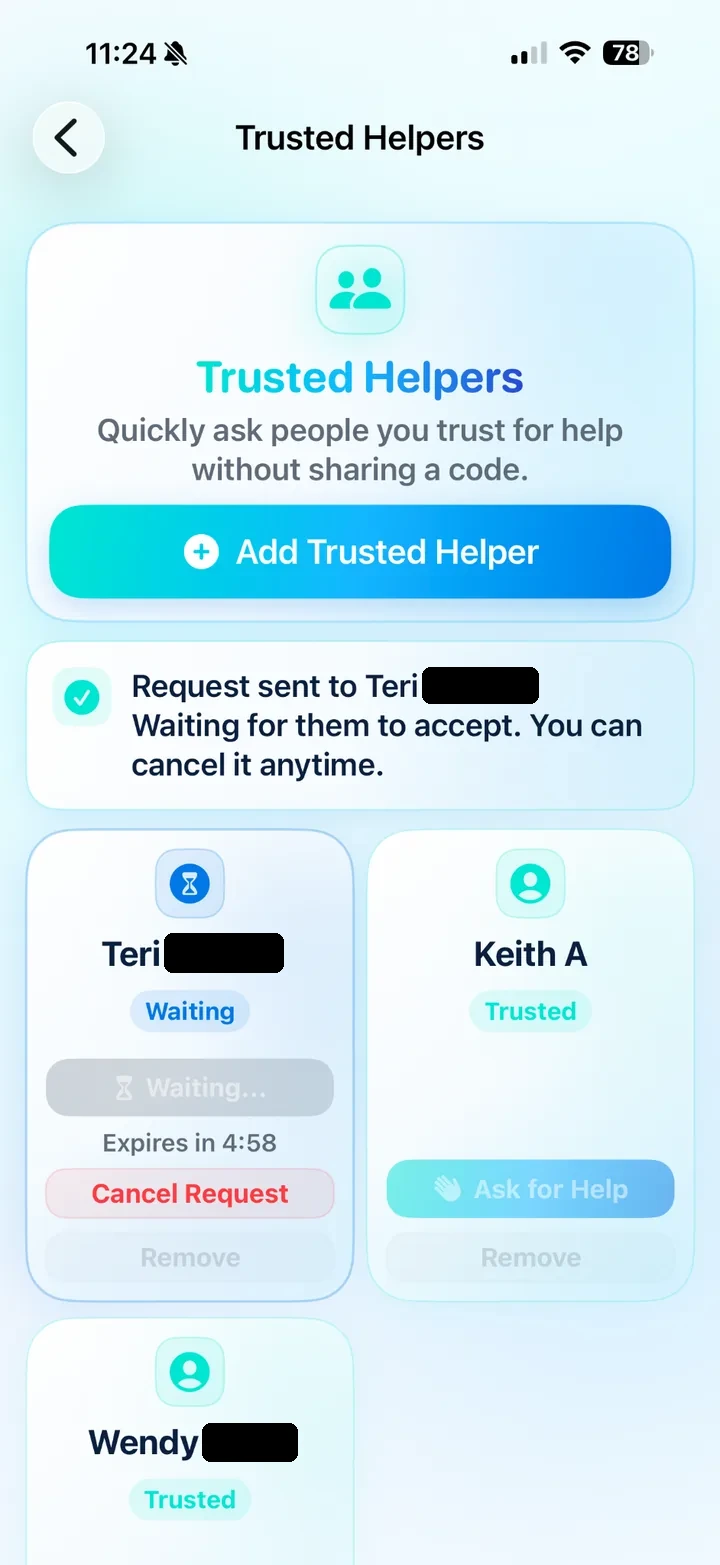
Ask a trusted helper
Tap Ask for Help to send a request without sharing a code.
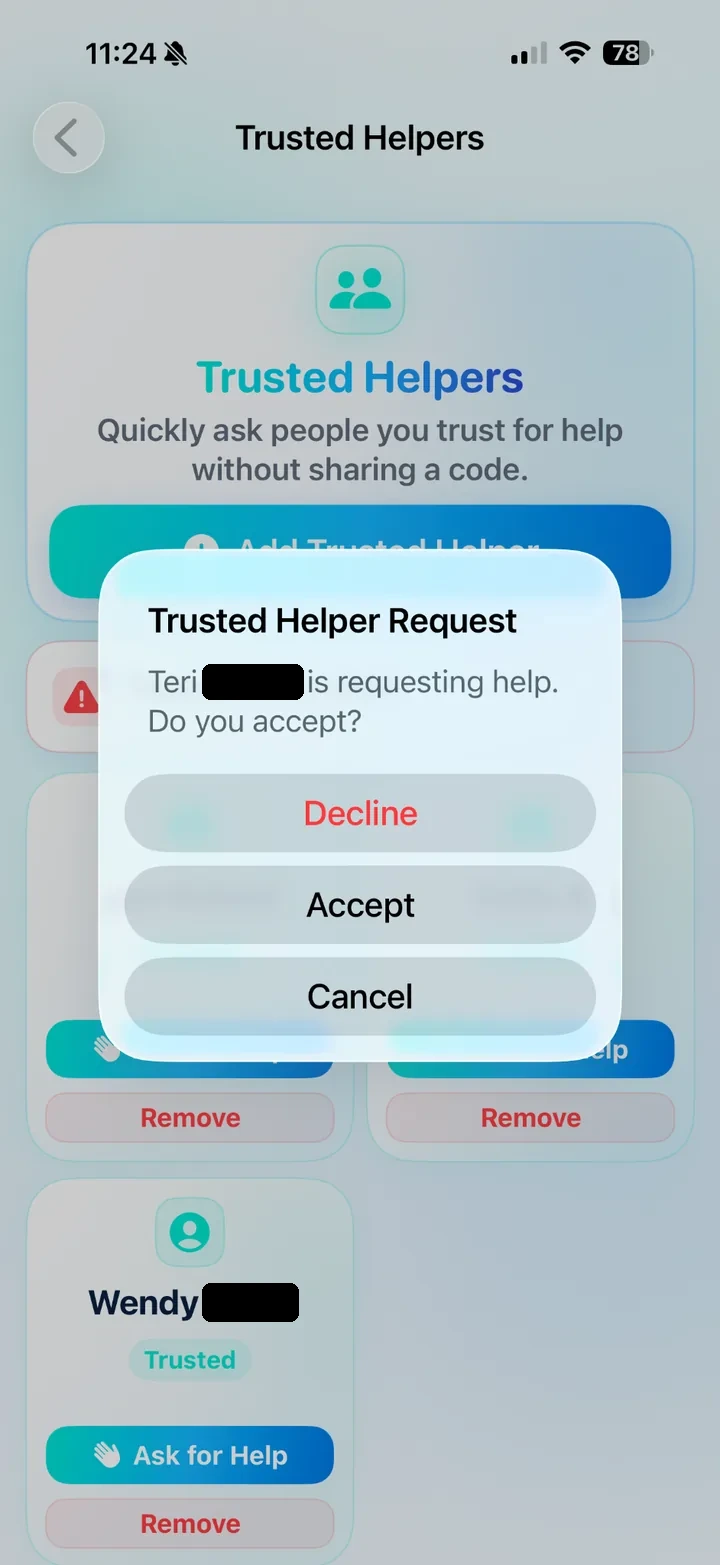
Accept a trusted request
The person receiving a trusted-helper request can accept, decline, or cancel.
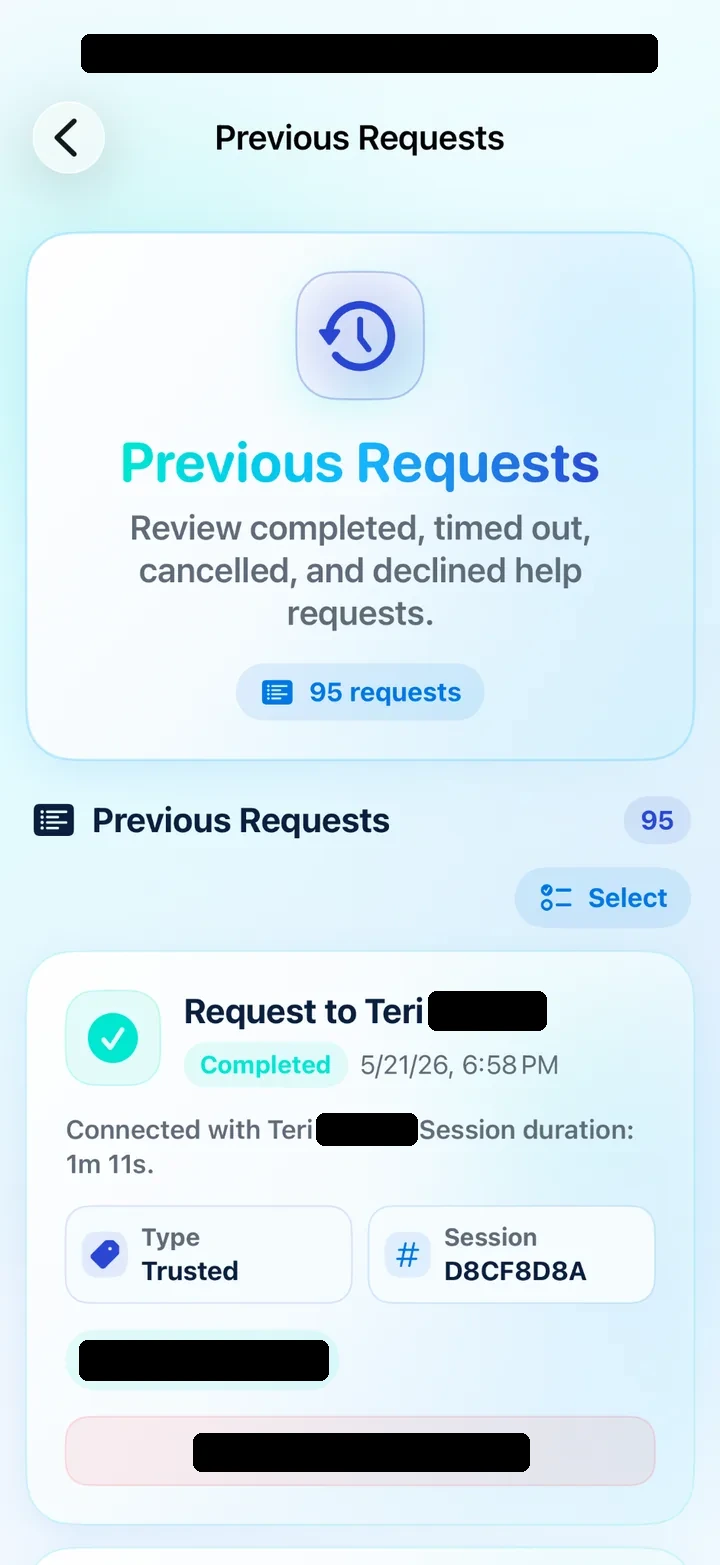
Review previous requests
Previous Requests shows completed, timed out, cancelled, and declined request history.
5. Providing Help
Use the Provide Help tab when someone asks you for support. You can enter a code, ping a requester who already trusts you, review incoming requests, and view completed help history.
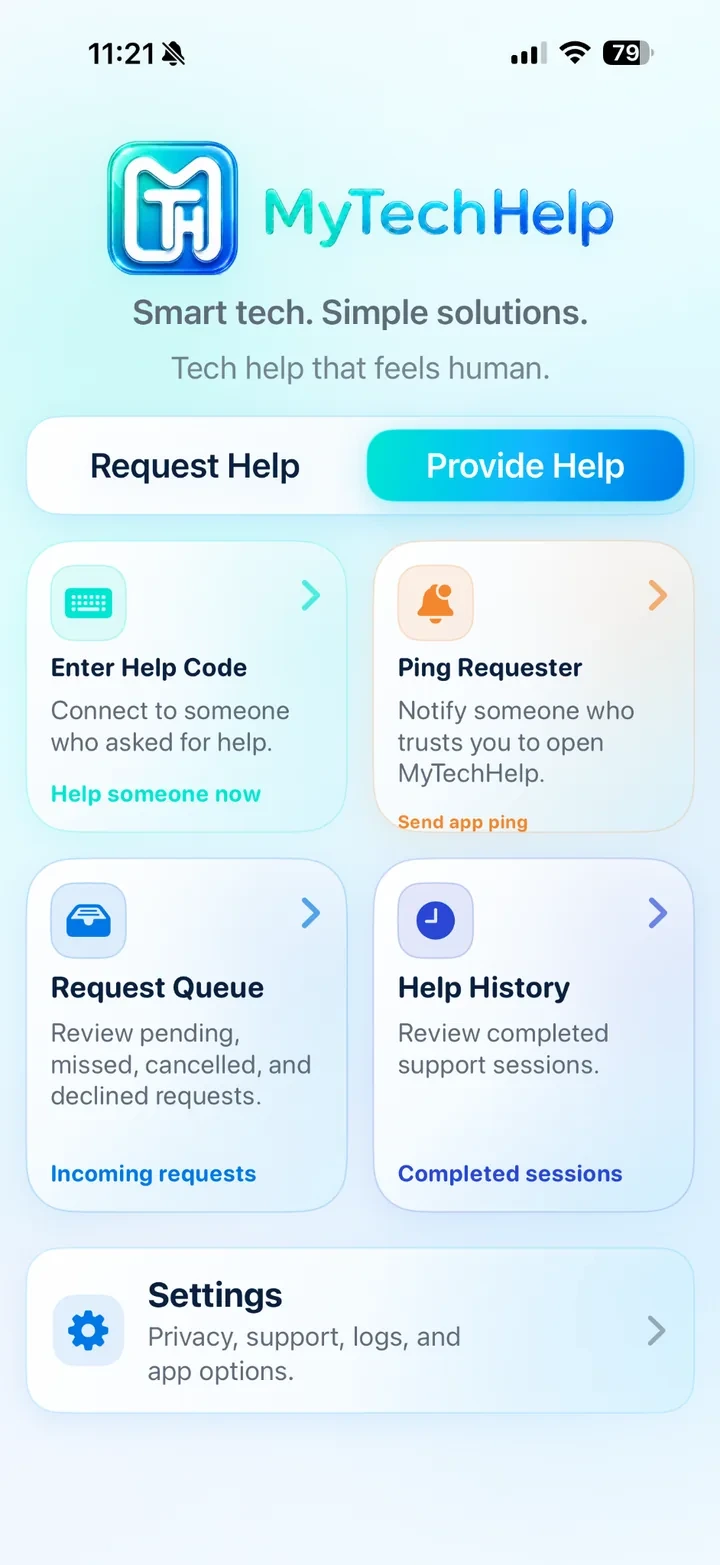
Provide Help dashboard
Use Enter Help Code for a 6-digit code, Ping Requester to nudge someone who trusts you, Request Queue for incoming requests, and Help History for completed sessions.
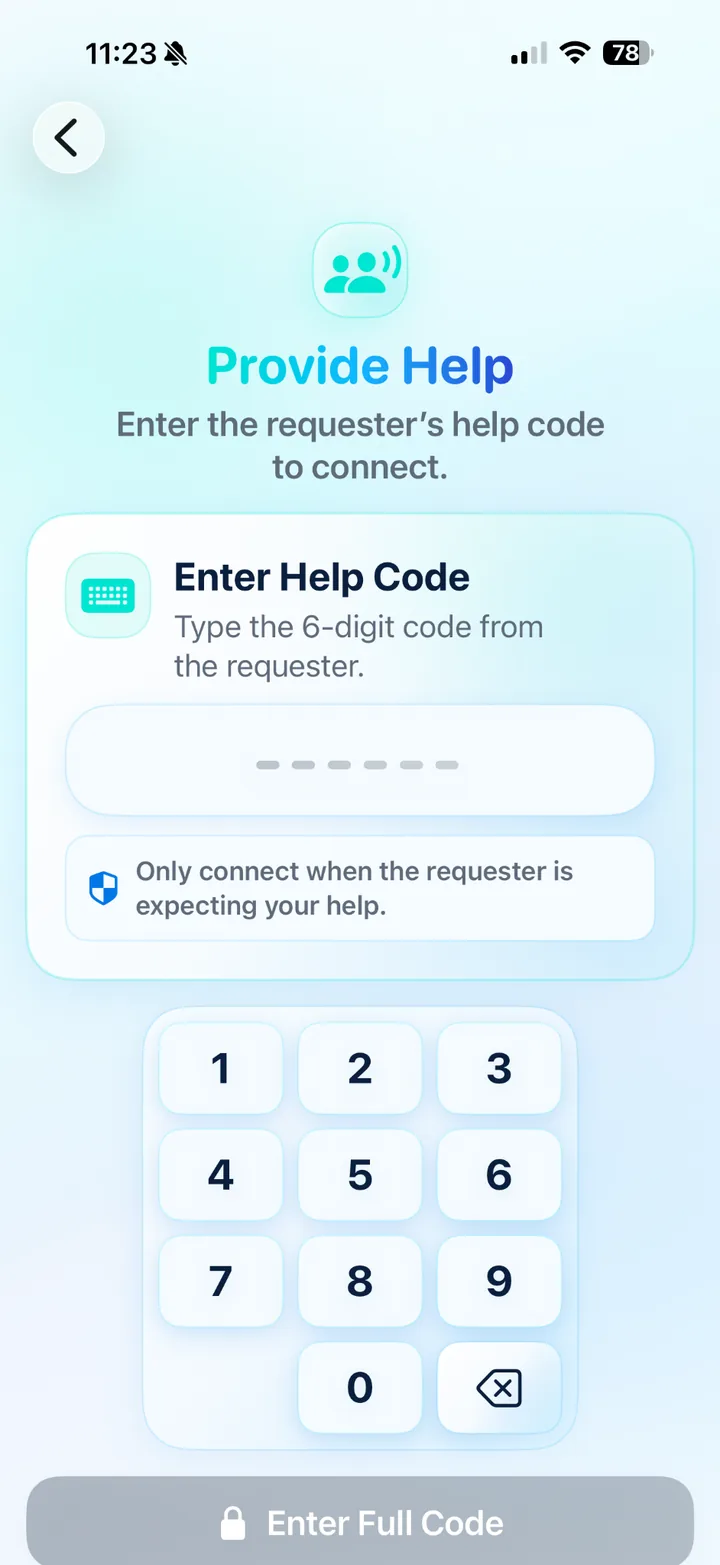
Enter a help code
Enter the requester’s 6-digit code only when they are expecting your help.
6. Ping Requester
Ping Requester helps a trusted helper notify a requester who already added them as trusted. This is useful when the requester needs help finding or opening MyTechHelp.
Choose a requester
The list shows requesters who have already added you as a trusted helper.
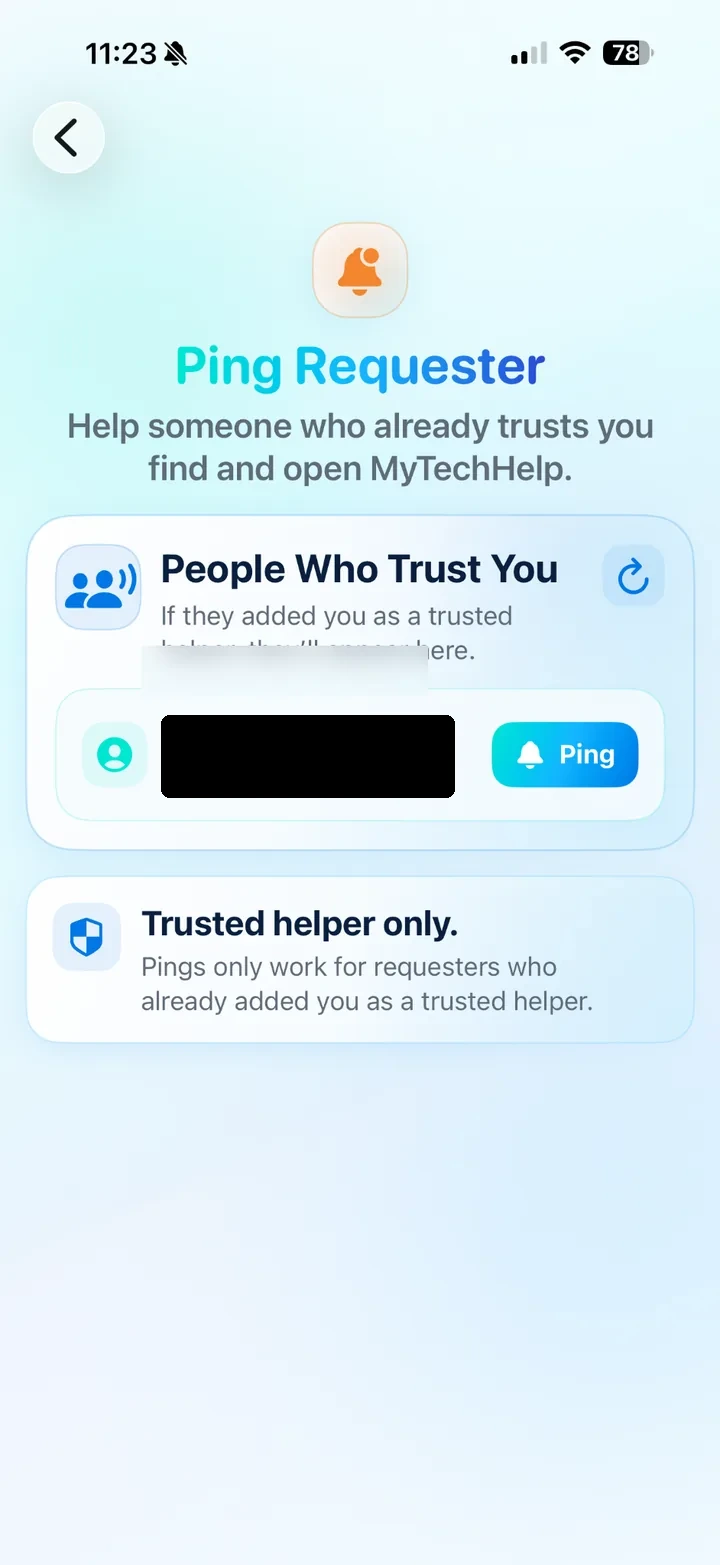
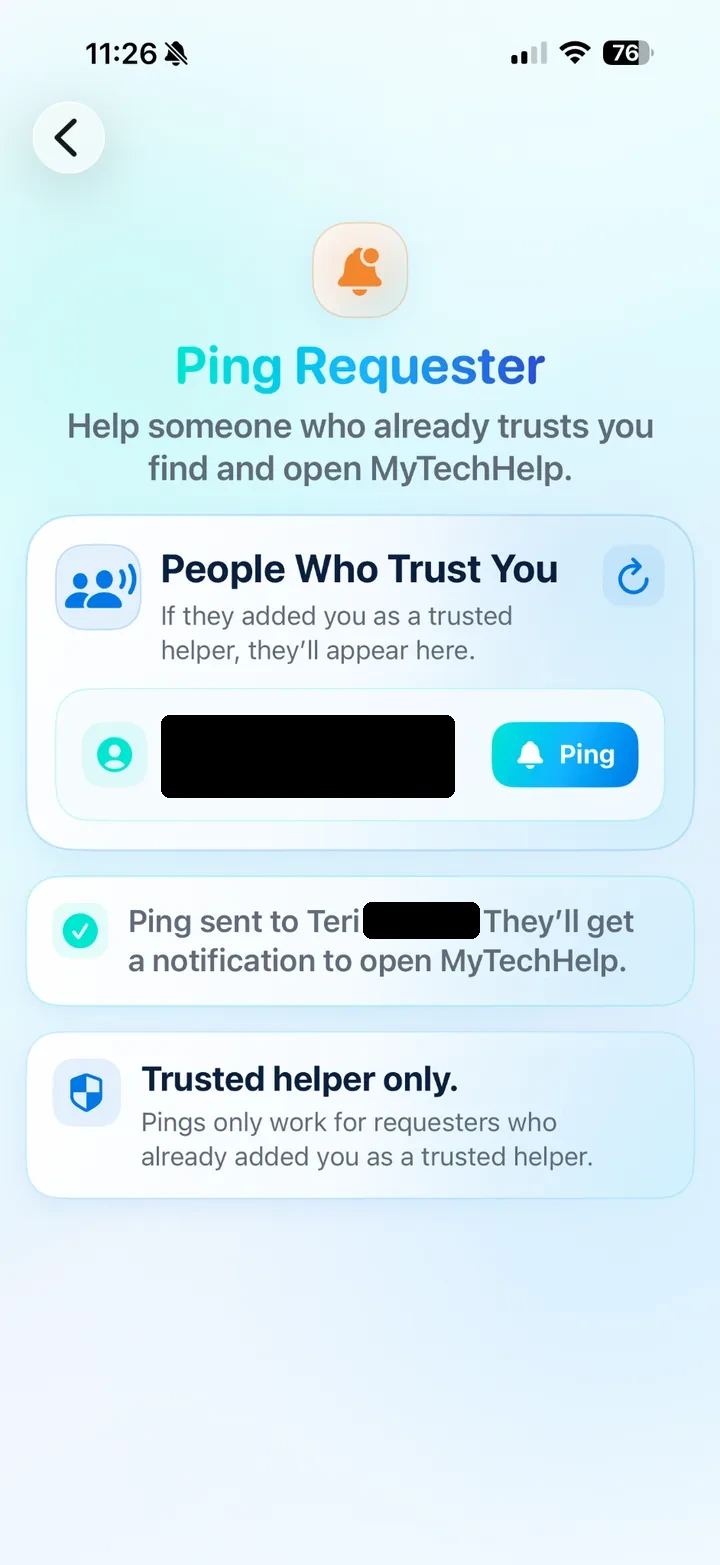
Send the ping
Tap Ping. The requester receives a notification to open MyTechHelp.
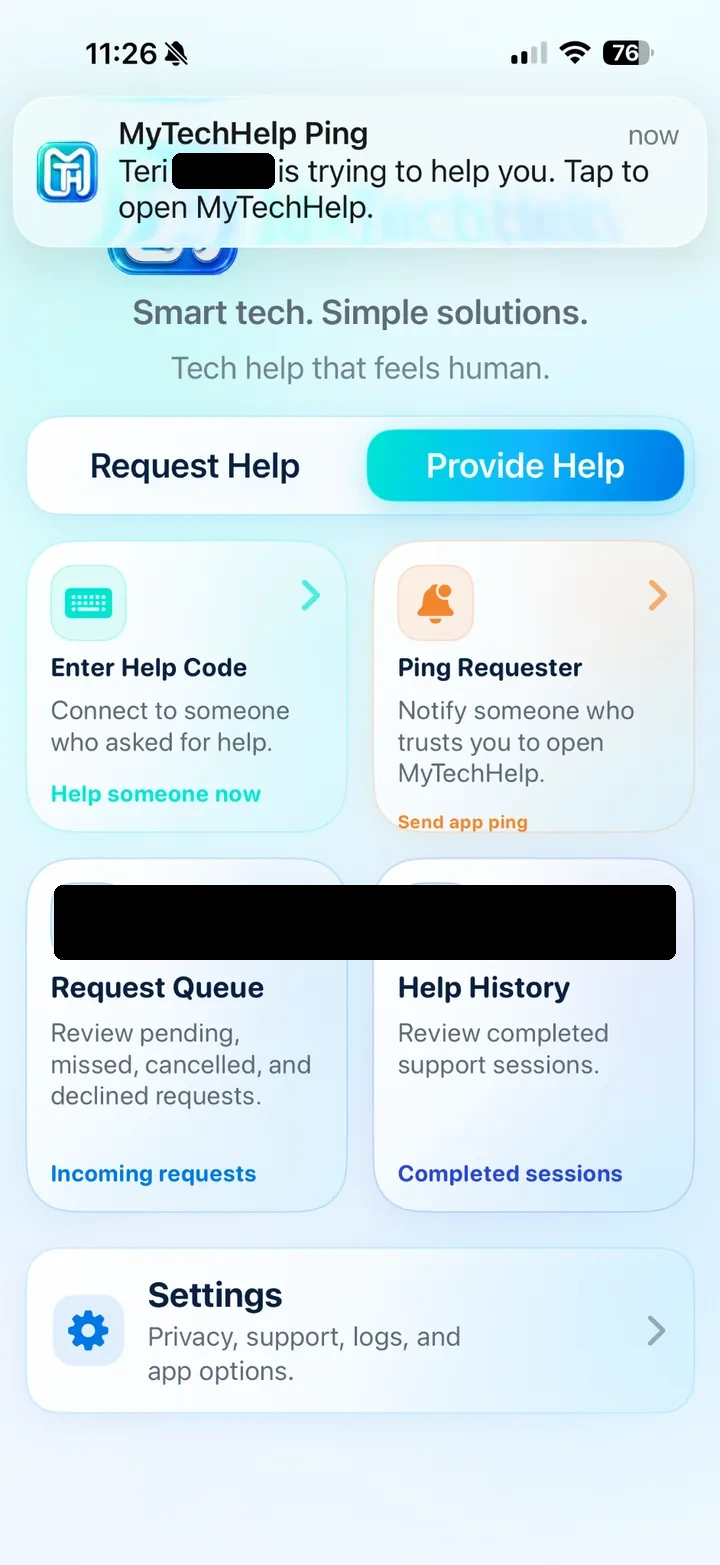
Requester notification
The requester can tap the notification to open the app and continue the support flow.
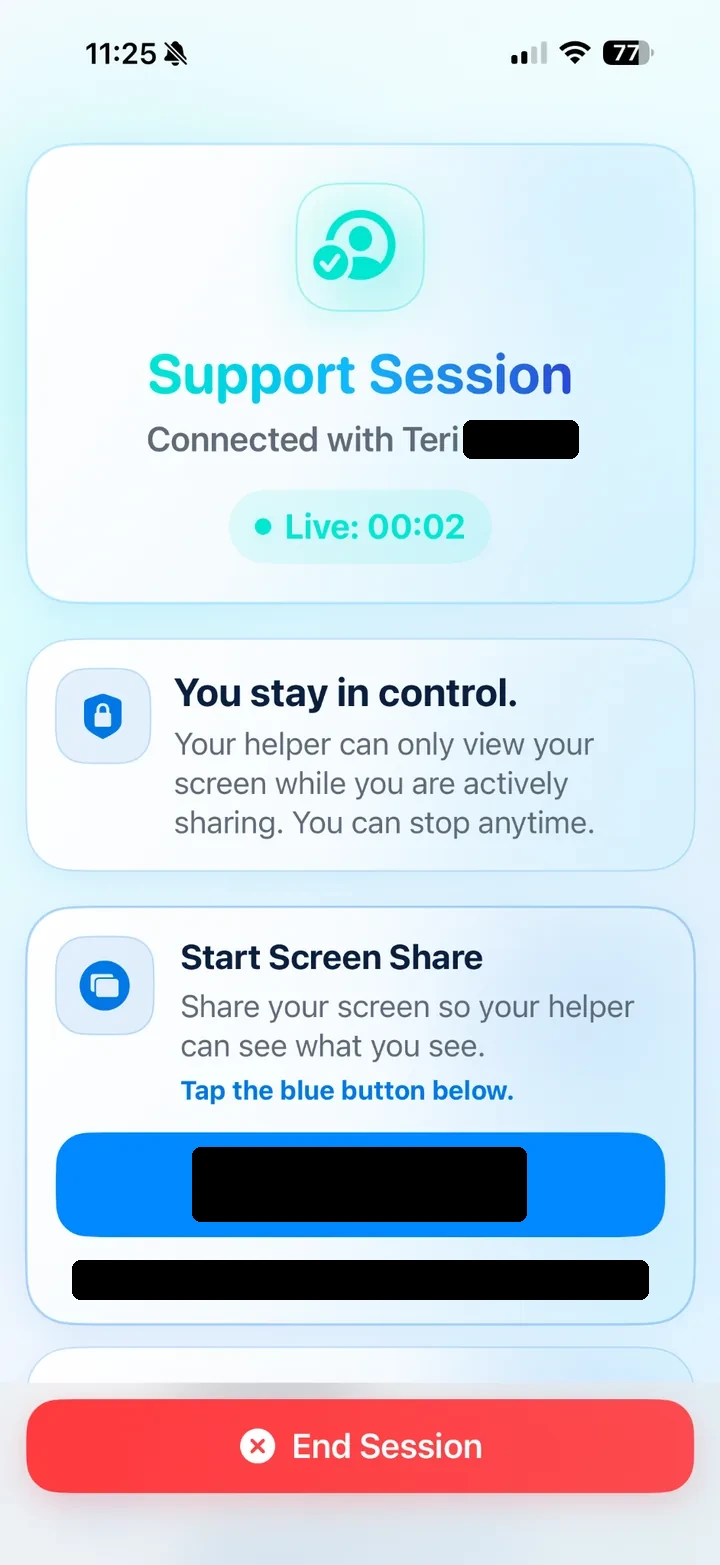
7. Screen Sharing and Live Sessions
The requester controls screen sharing. Helpers cannot start screen sharing for the requester.
Start screen sharing
After the session connects, the requester taps Start Screen Share.
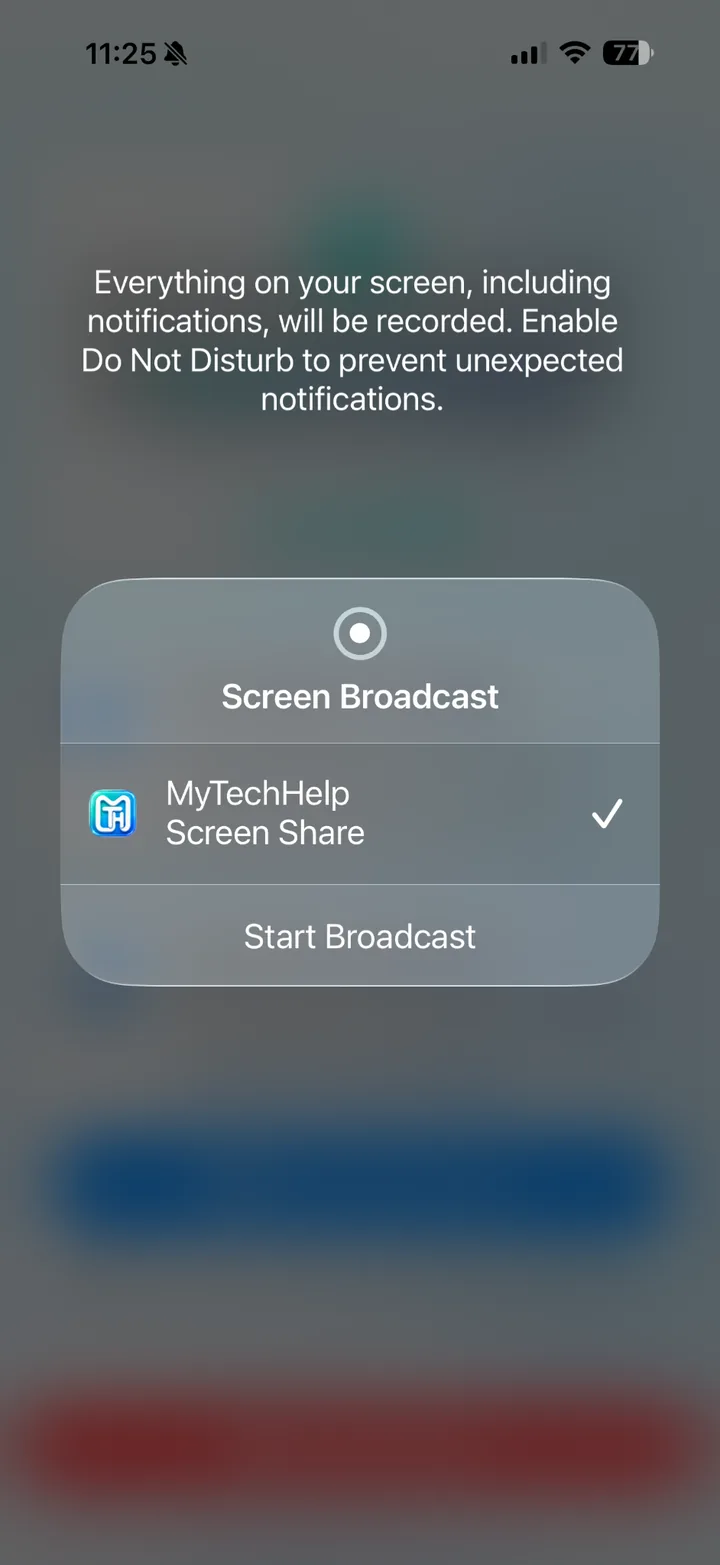
Apple broadcast sheet
Choose MyTechHelp Screen Share, then tap Start Broadcast.
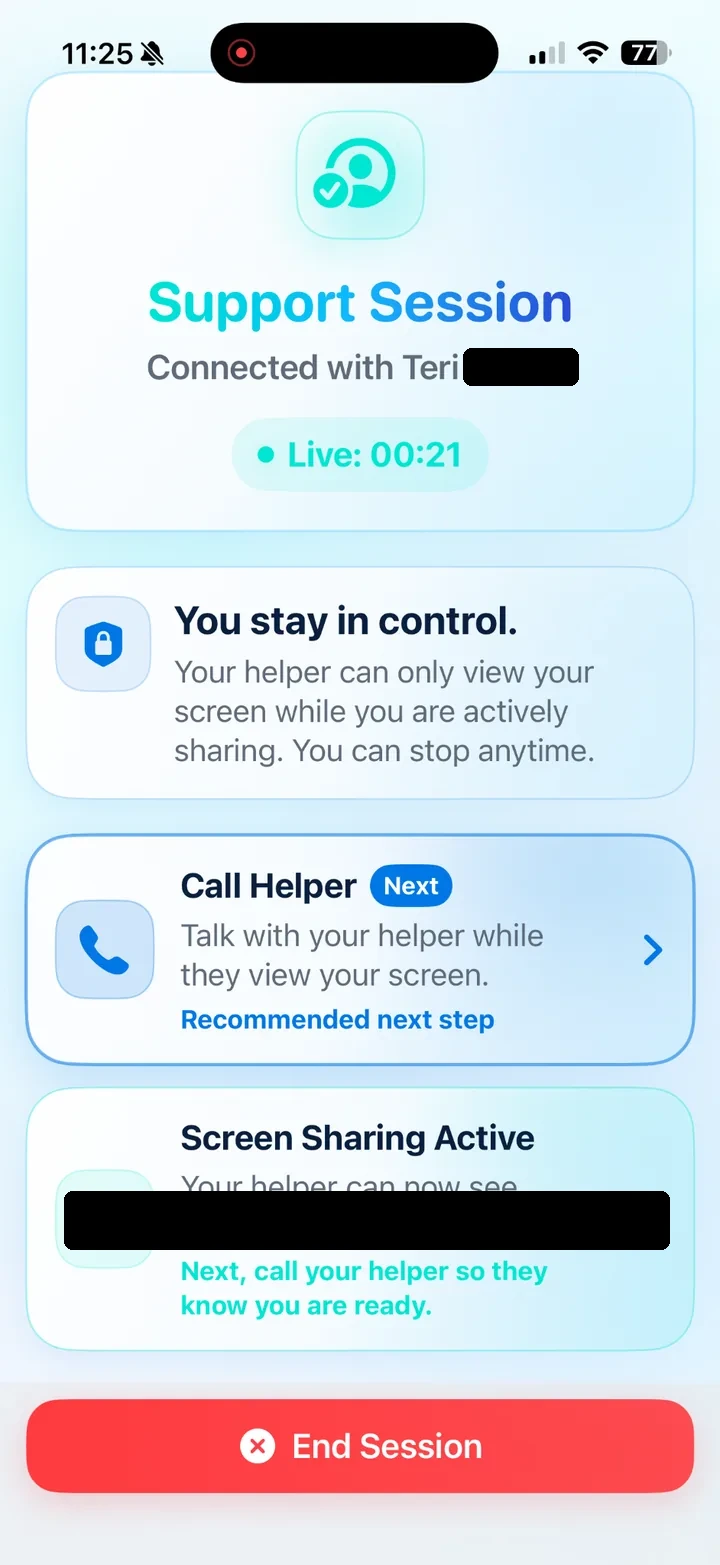
Screen Sharing Active
The requester sees that screen sharing is active and can stop anytime.
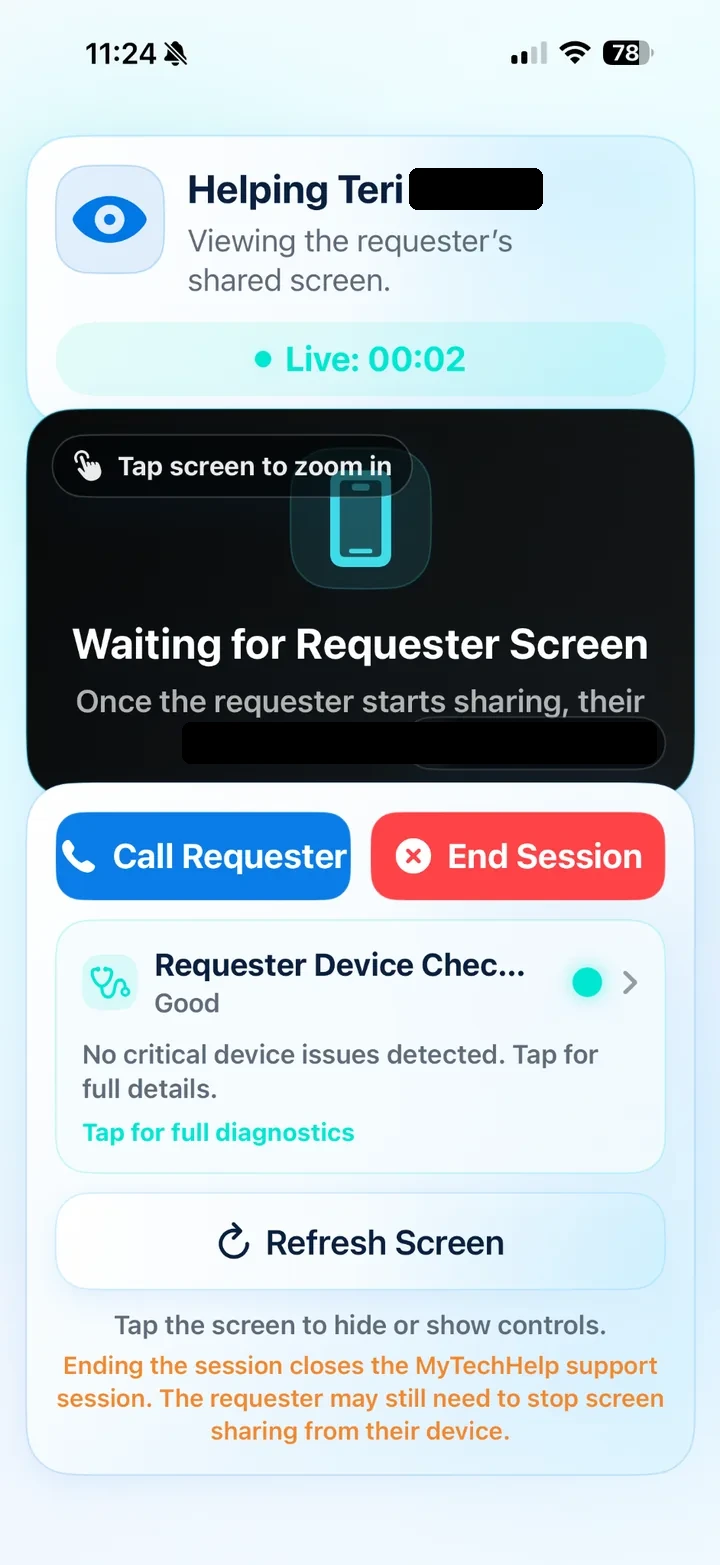
Waiting for requester screen
The helper sees a waiting view until the requester starts broadcasting.
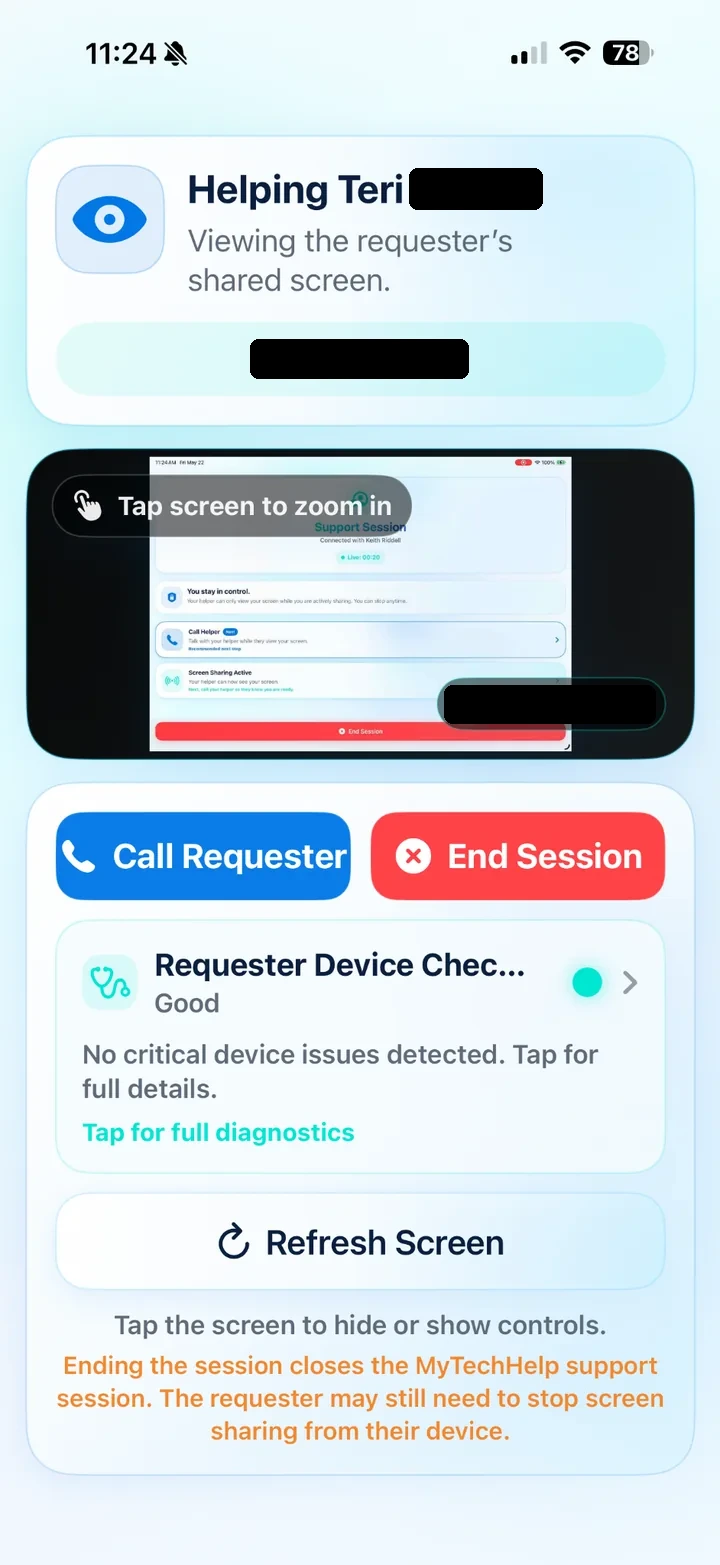
Viewing the shared screen
The helper can view the requester’s screen, call the requester, refresh the screen, or end the session.
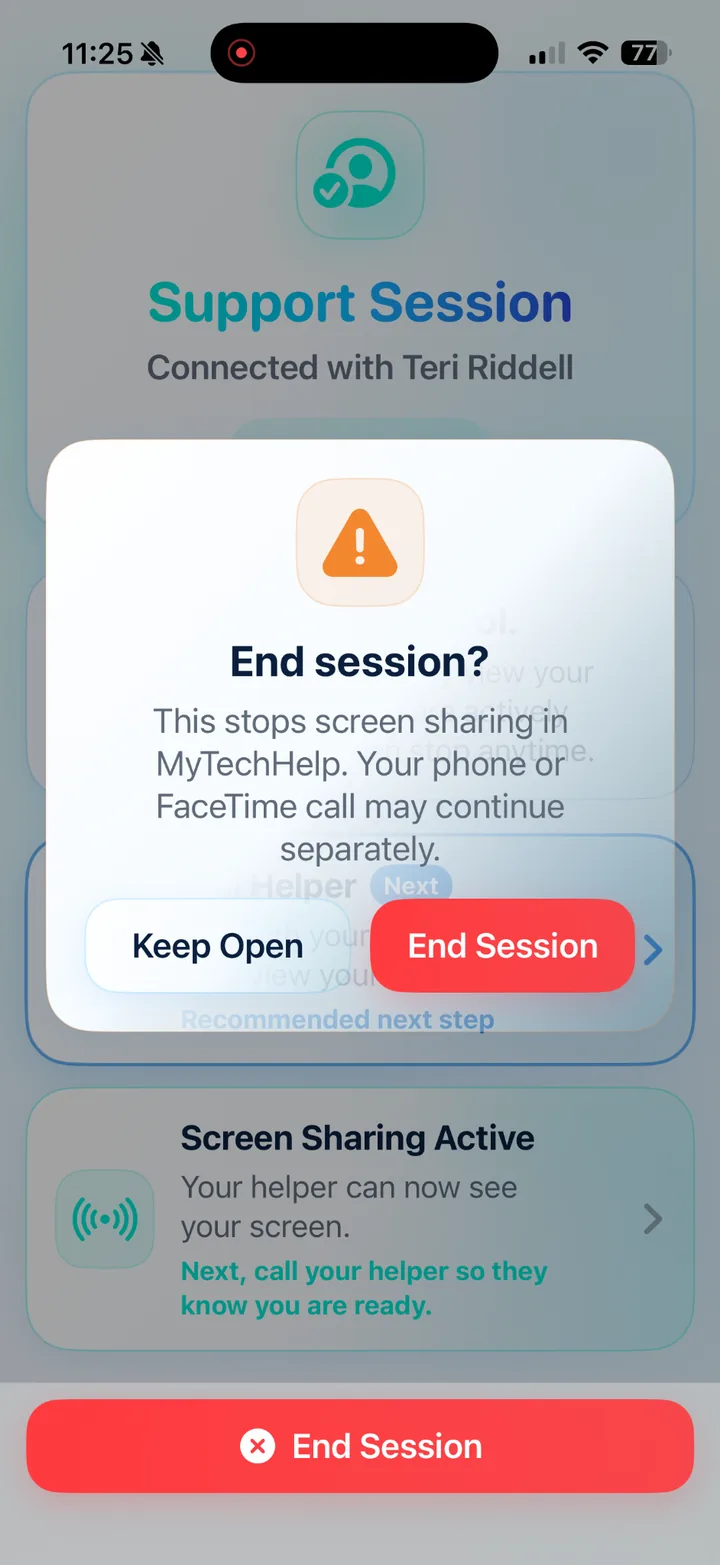
End session
Either side can end the support session. Phone or FaceTime calls may continue separately.
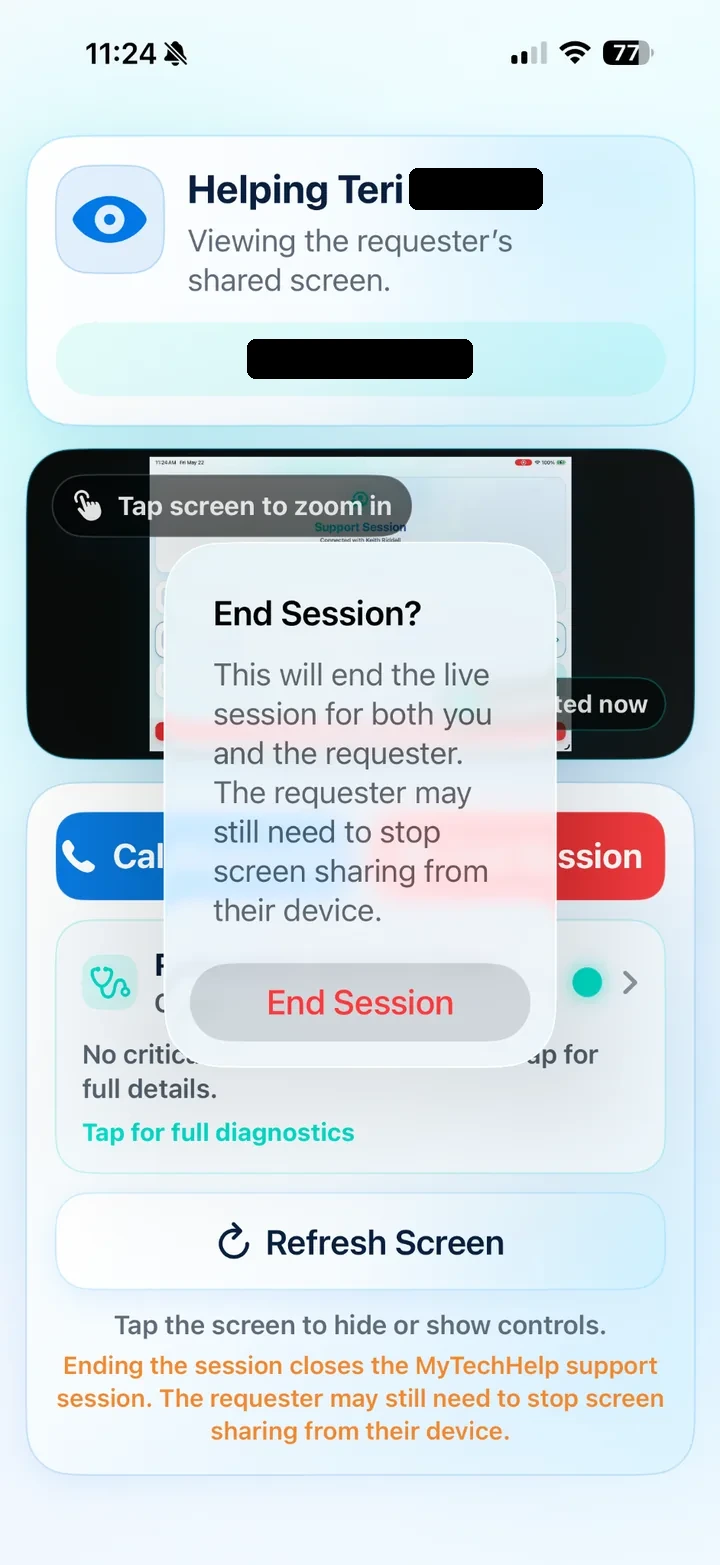
Helper end session
The helper can also end the live session for both users when needed.
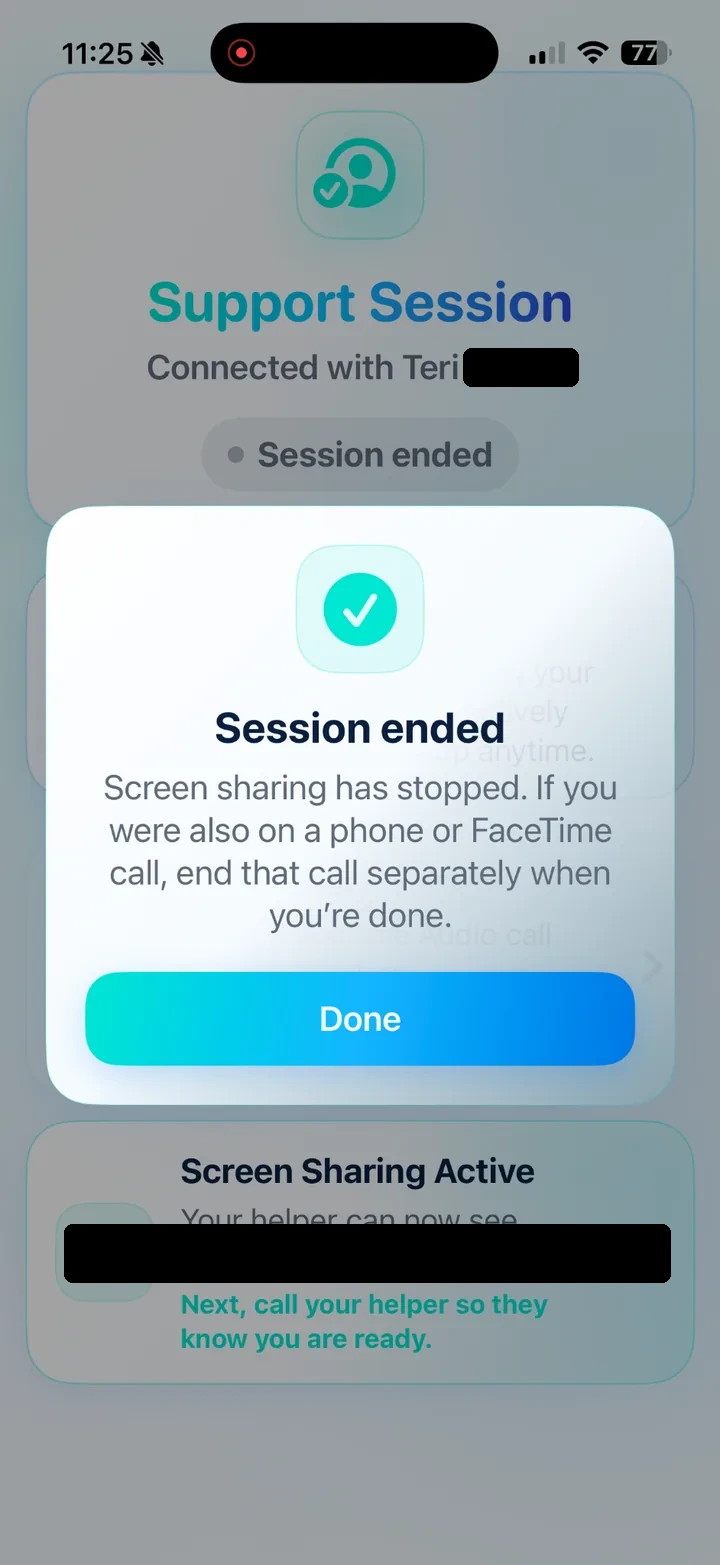
Session ended
After ending, MyTechHelp shows confirmation and reminds users about separate calls.
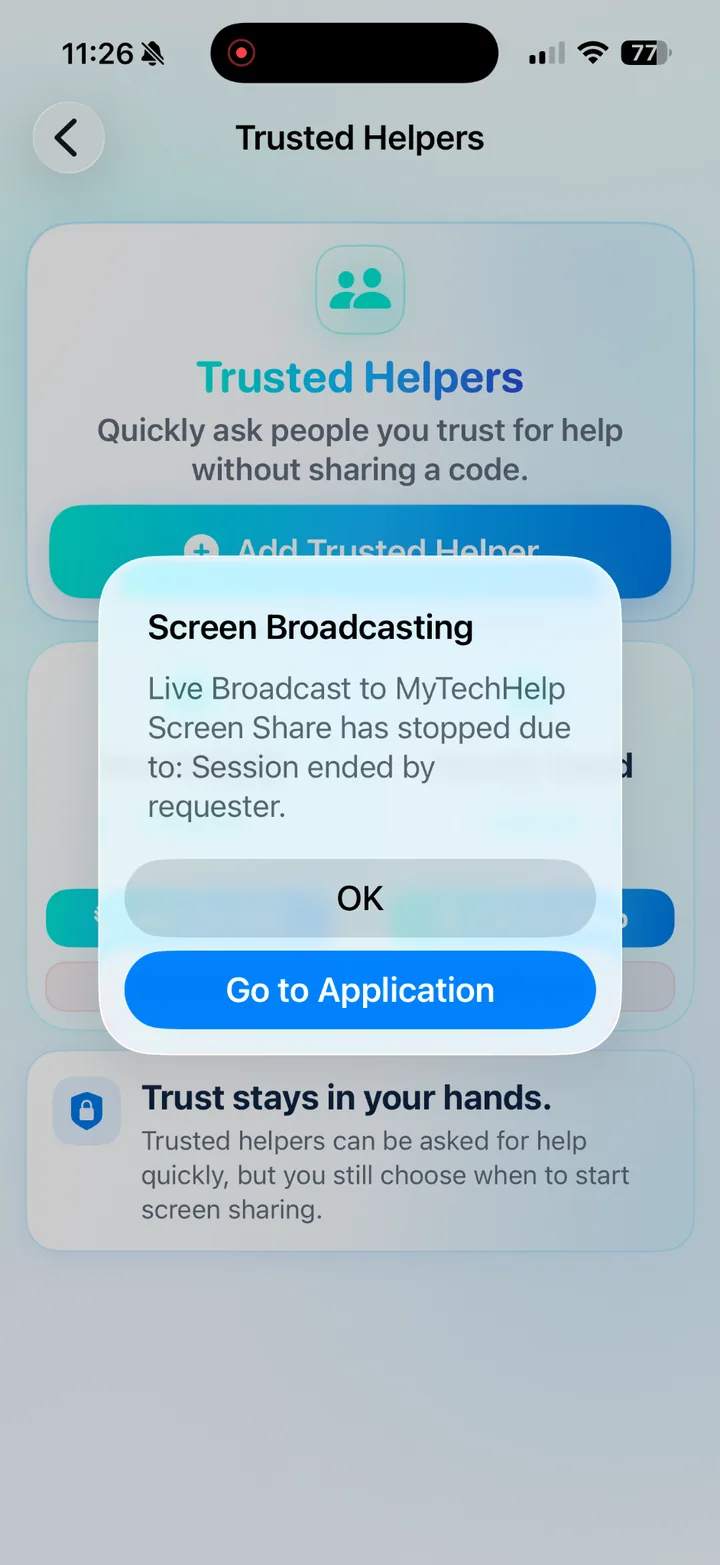
Broadcast stopped
Apple may show a Screen Broadcasting stopped alert when sharing stops.
8. History and Device Checkup
Completed sessions can include a saved Device Checkup so helpers can review device health and context after the session.
Request Queue
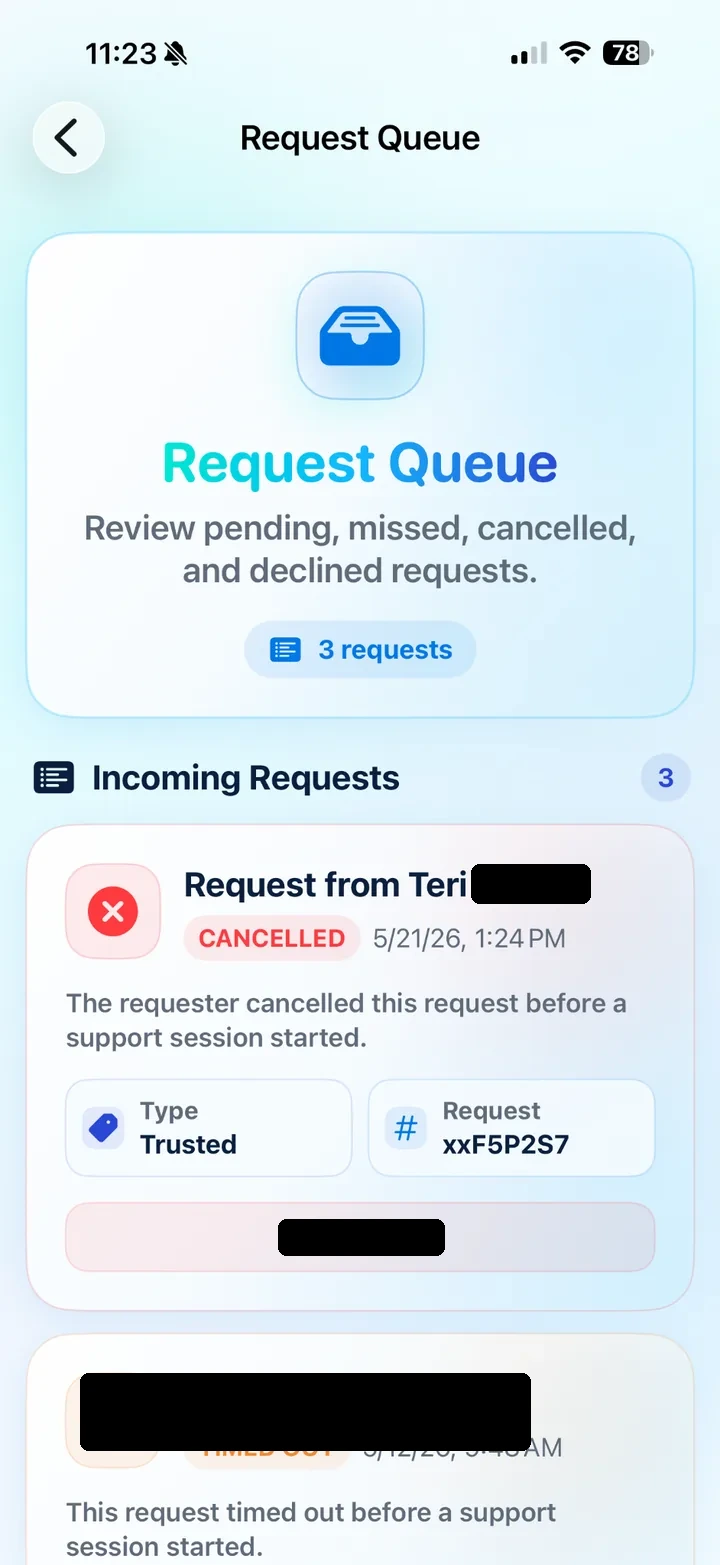
Request Queue shows incoming, missed, cancelled, declined, and timed-out requests.
Help History
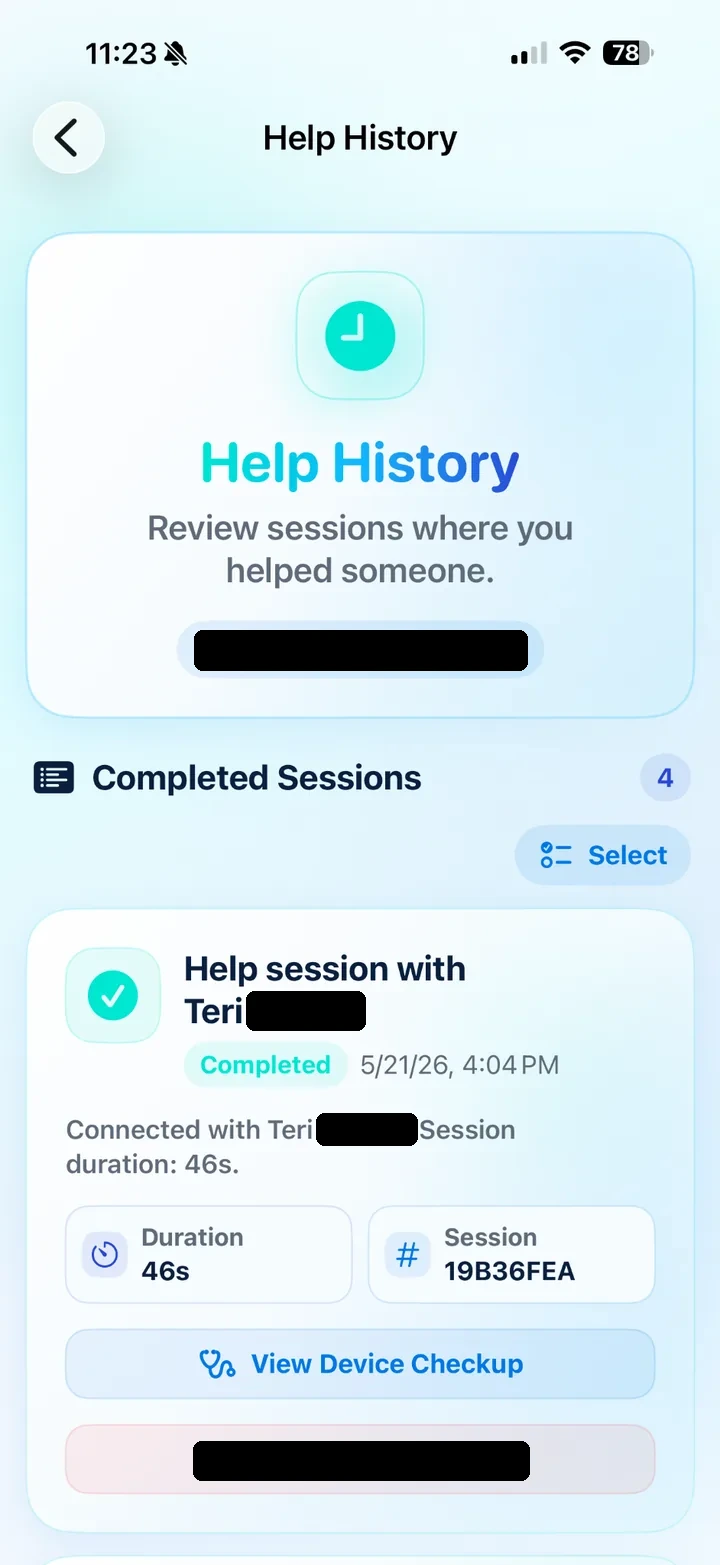
Completed support sessions appear in Help History. Tap View Device Checkup when available.
Device Checkup summary
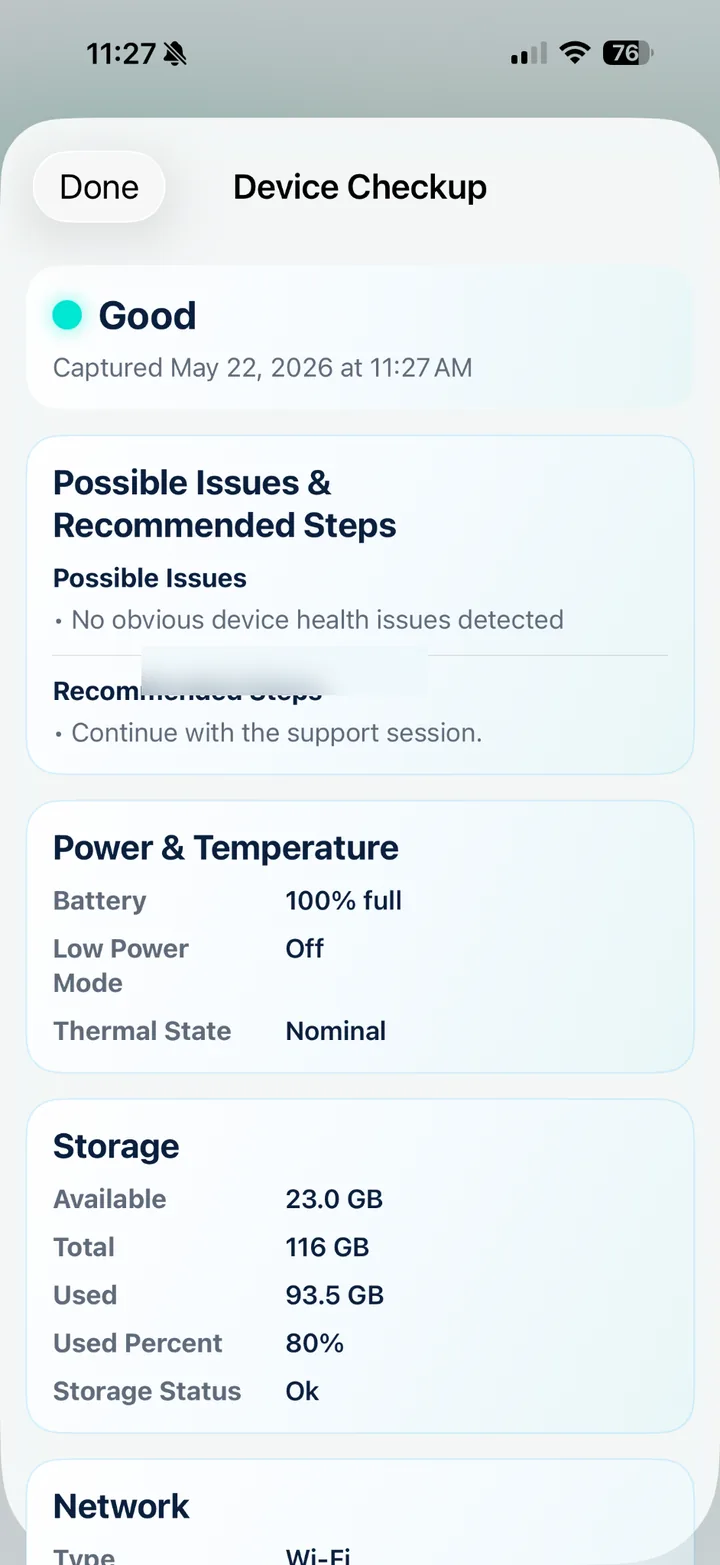
The summary shows health status and recommended steps for the requester’s device.
Device Checkup details
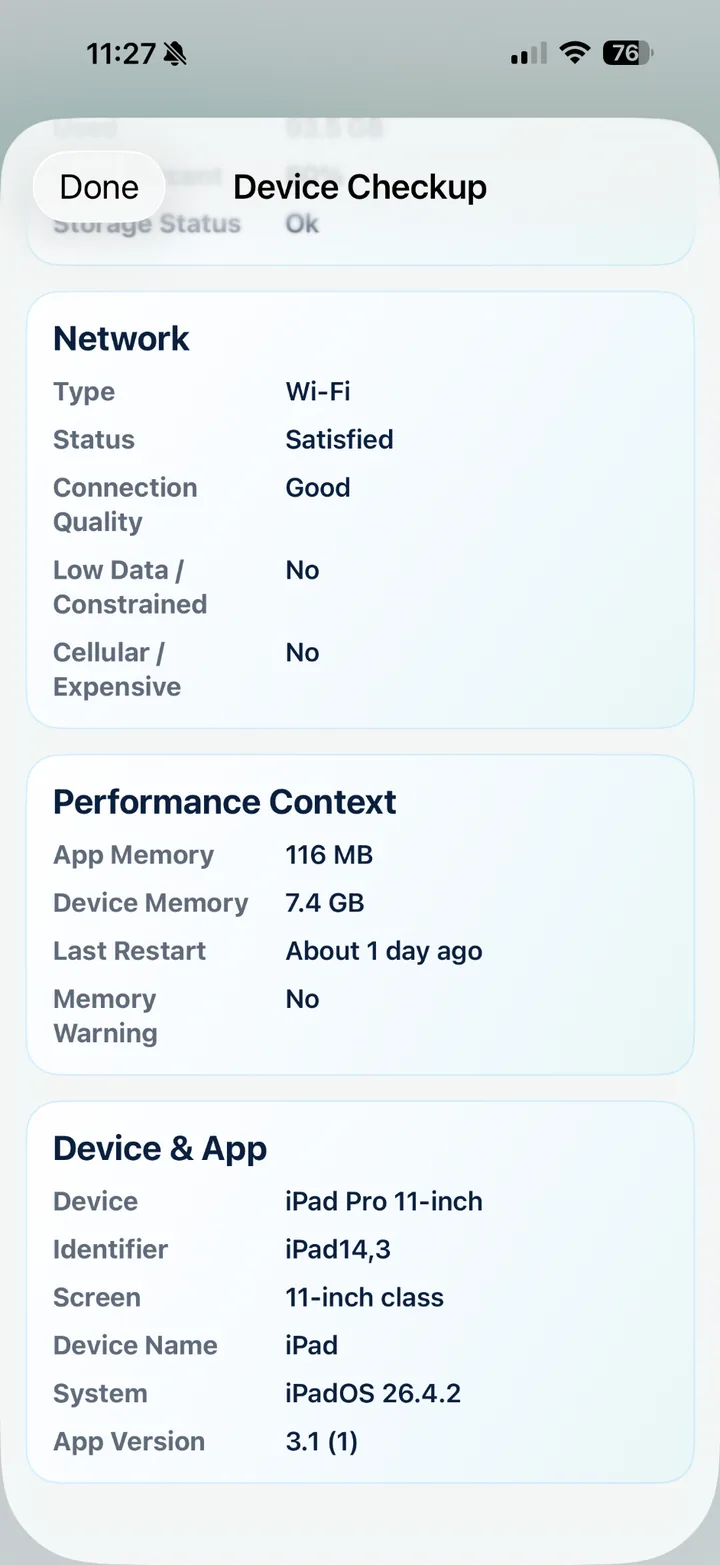
Details include network, performance context, storage, device model, identifier, screen class, OS version, and app version.
9. Settings, Account, and Plan
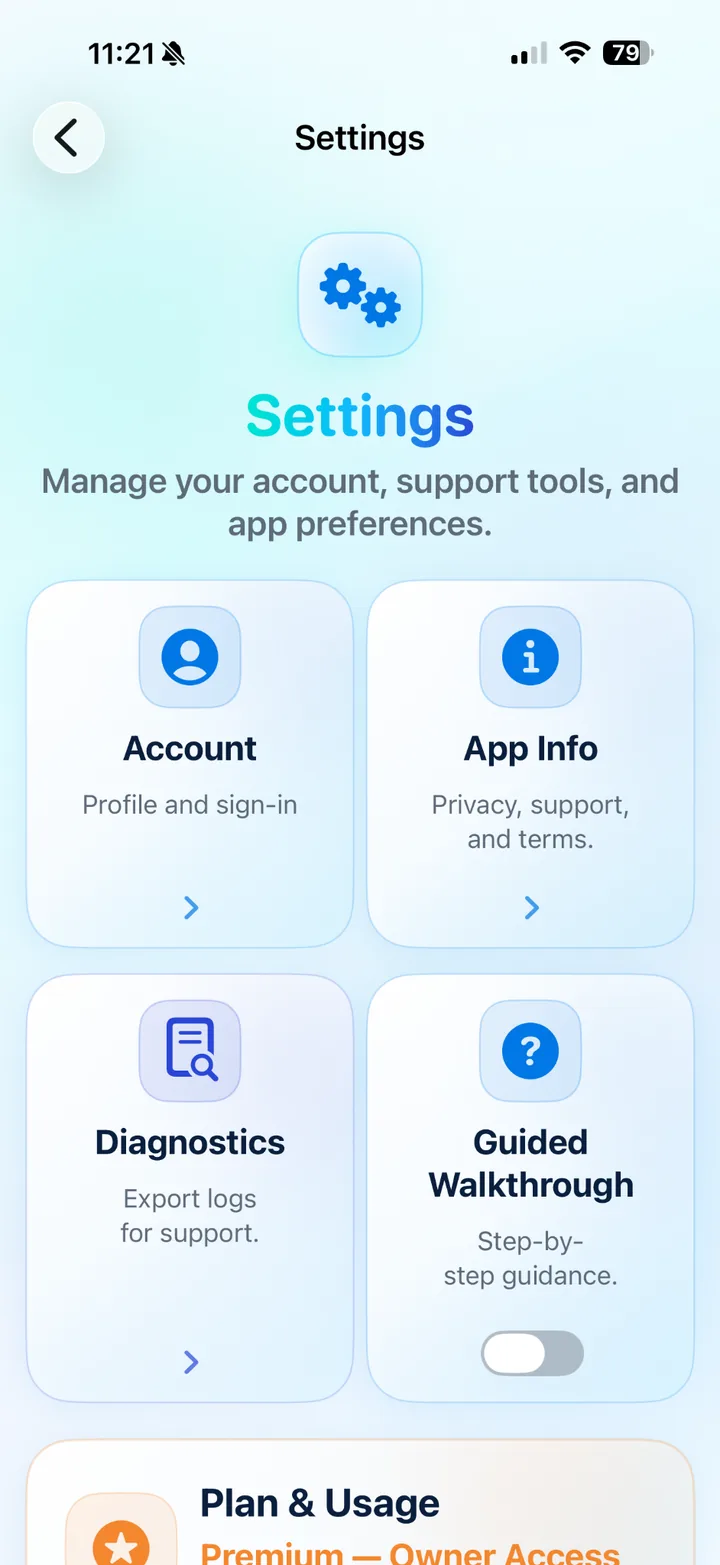
Settings is where users manage account information, support call contact, plan and usage, diagnostics, app info, guided walkthrough, and account deletion.
Settings overview
Open Settings to manage app tools and account options.
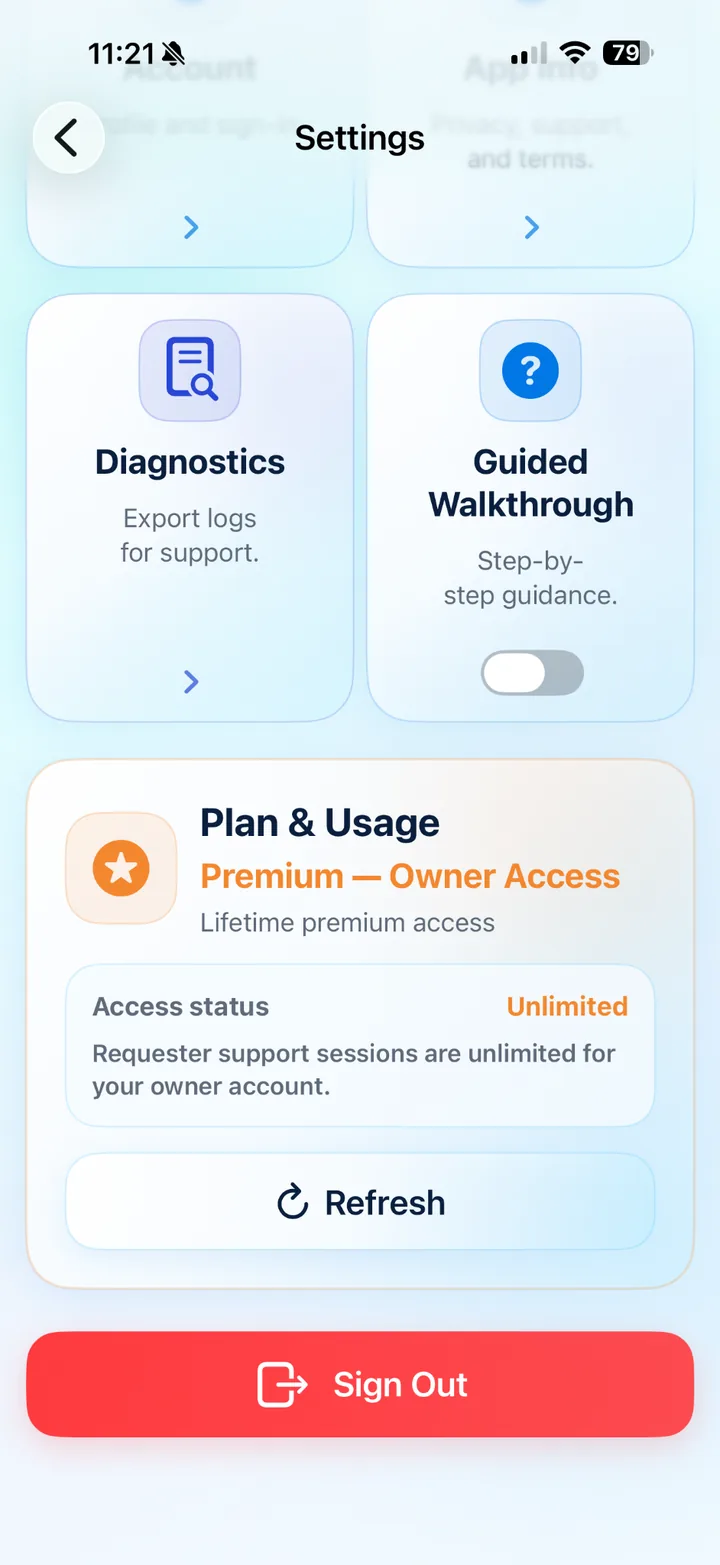
Plan & Usage
Plan & Usage shows trial, expired trial, Premium, or owner access status.
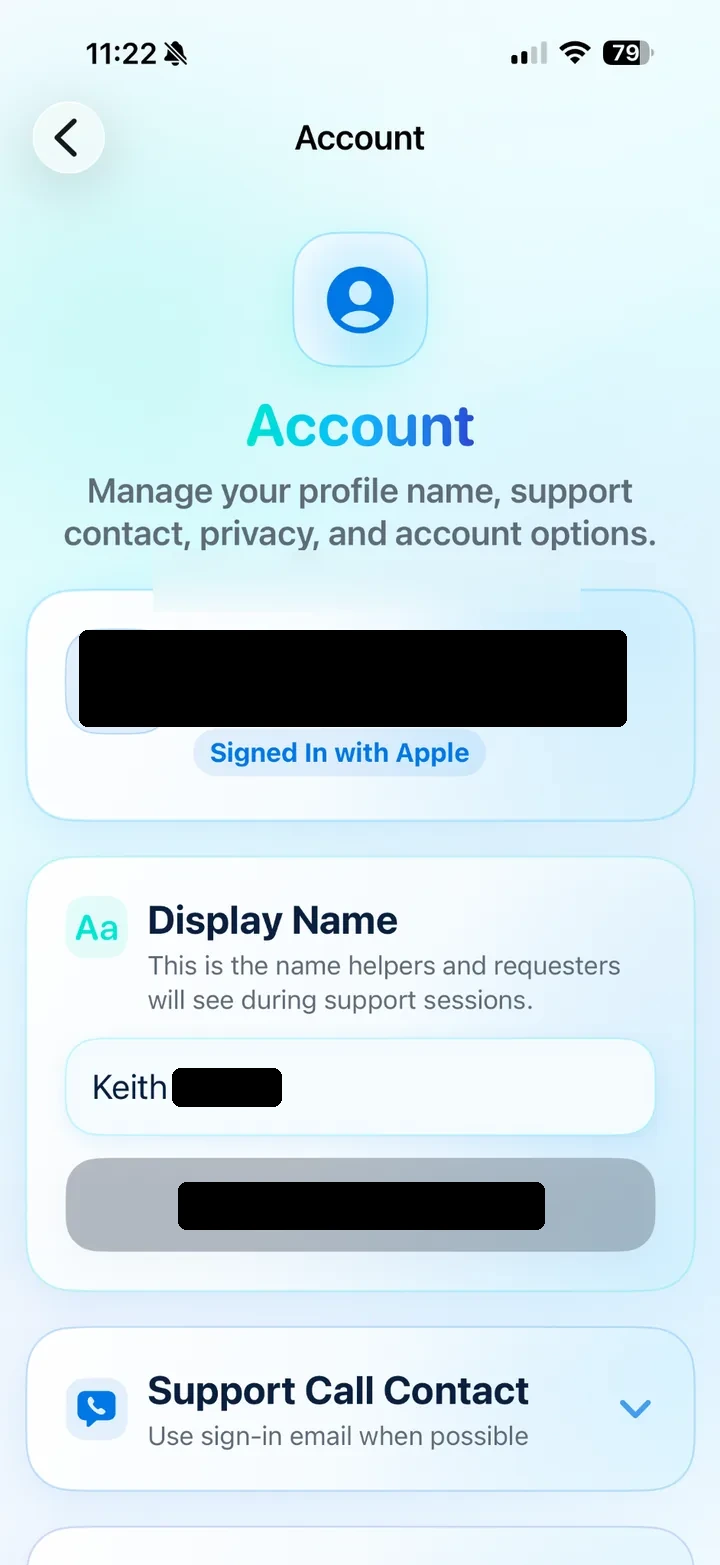
Account
Account shows display name, sign-in status, support call contact, sign-in details, privacy notes, and delete account options.
Display Name
The display name is shown to helpers and requesters during support sessions.
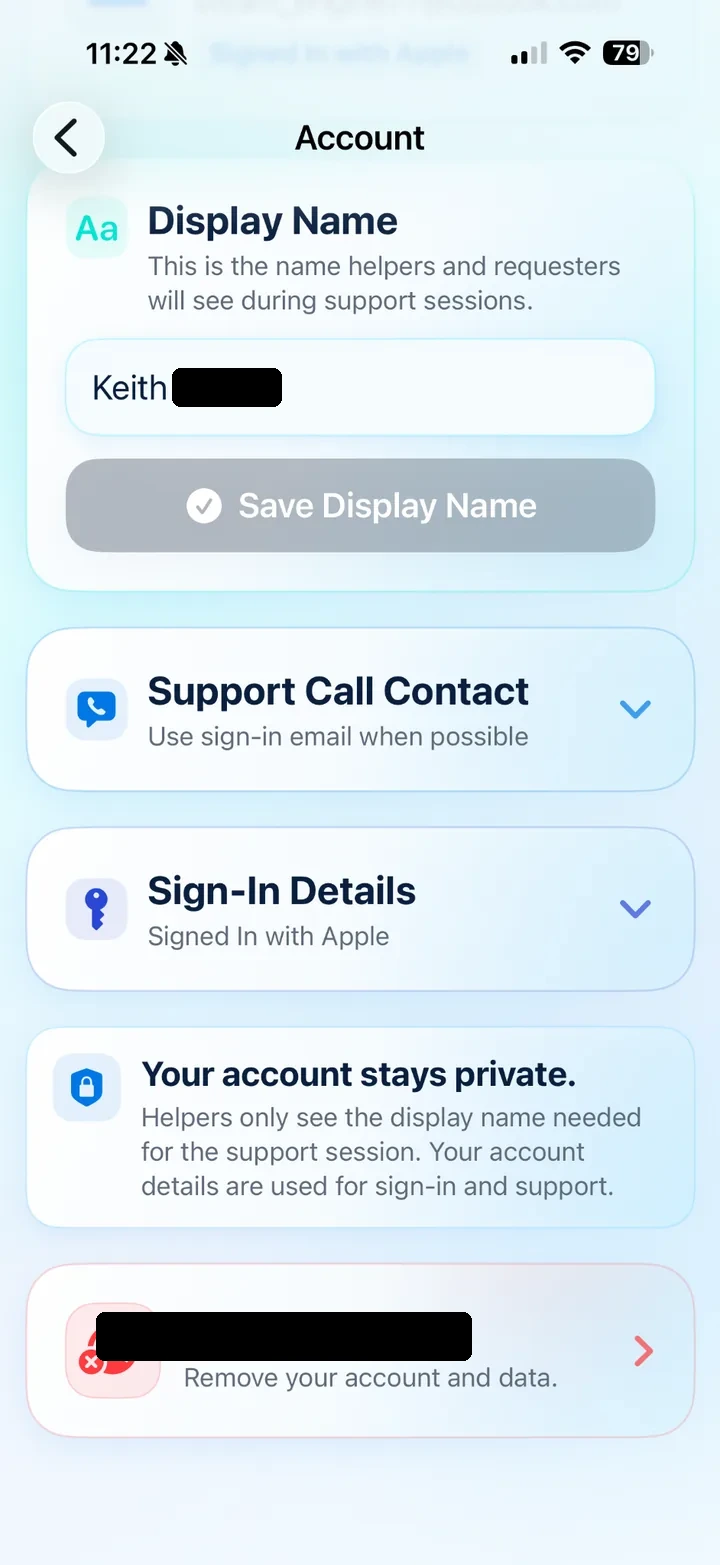
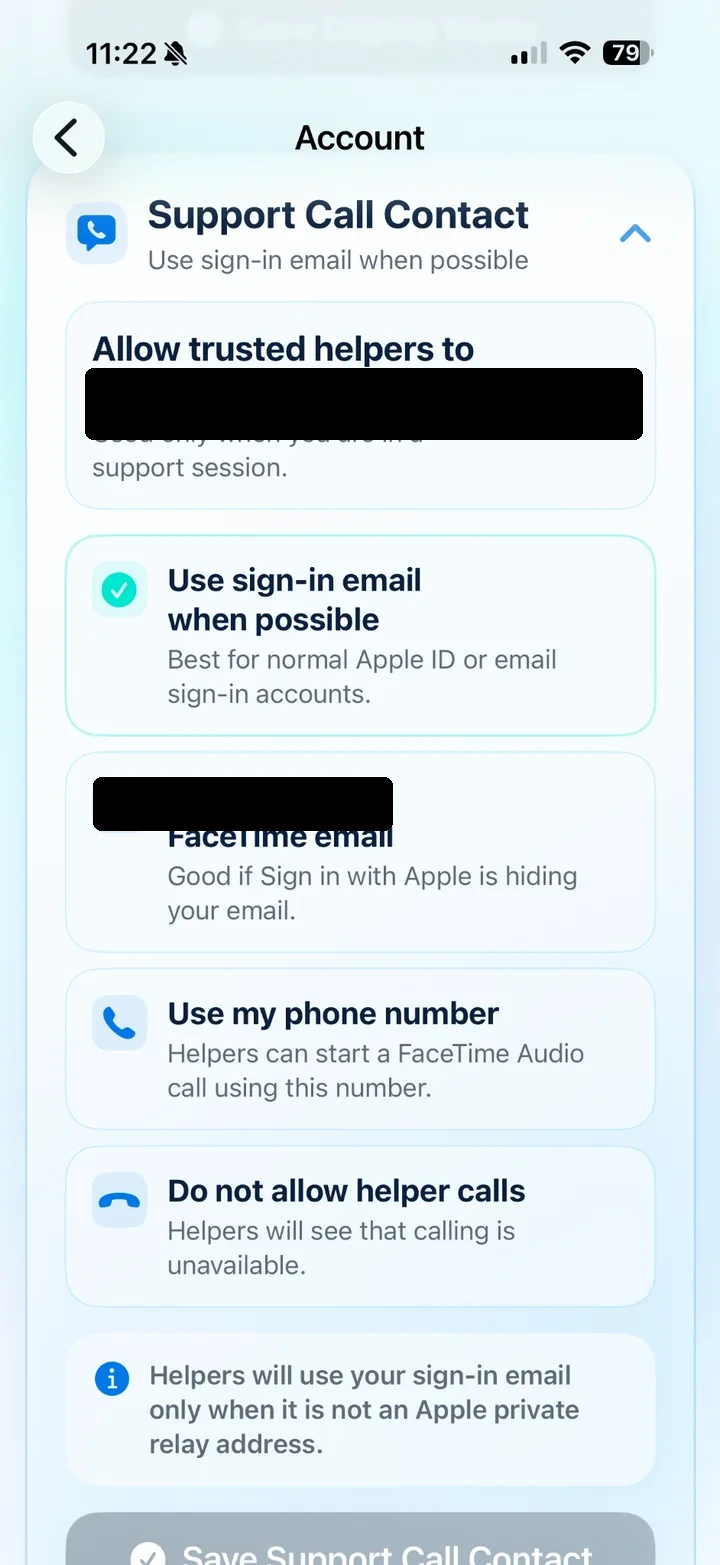
Support Call Contact
Choose how trusted helpers may call during a session, or turn helper calls off.
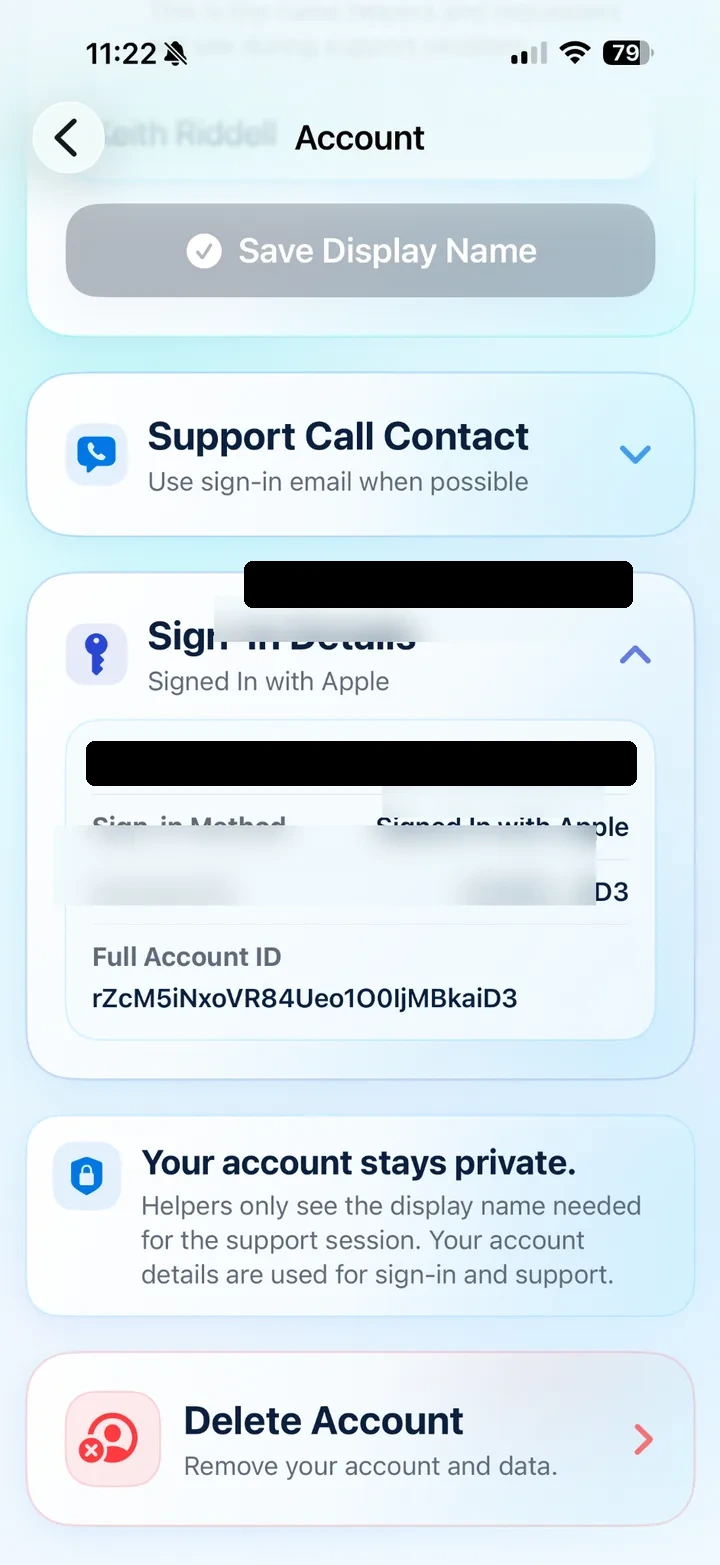
Sign-In Details
Sign-in details are used for account and support purposes.
Pricing model
- Everyone receives a 30-day free trial.
- After the free period, requester support sessions require Premium access.
- Premium unlocks unlimited support sessions and future advanced features.
- Helpers can still help someone else without a subscription unless they are requesting help themselves.
10. Diagnostics, App Info, and Account Deletion
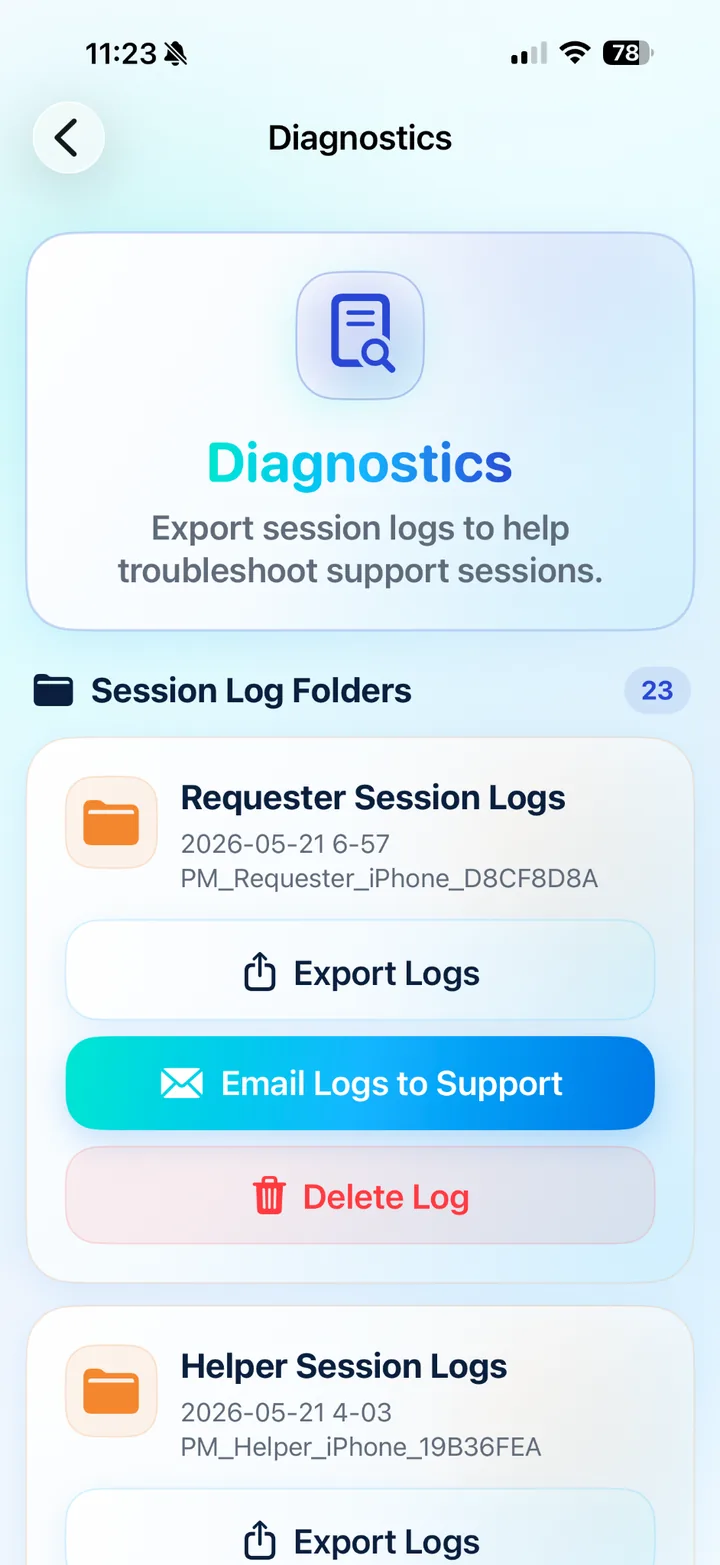
Diagnostics
Export or email logs to support when troubleshooting a session issue.
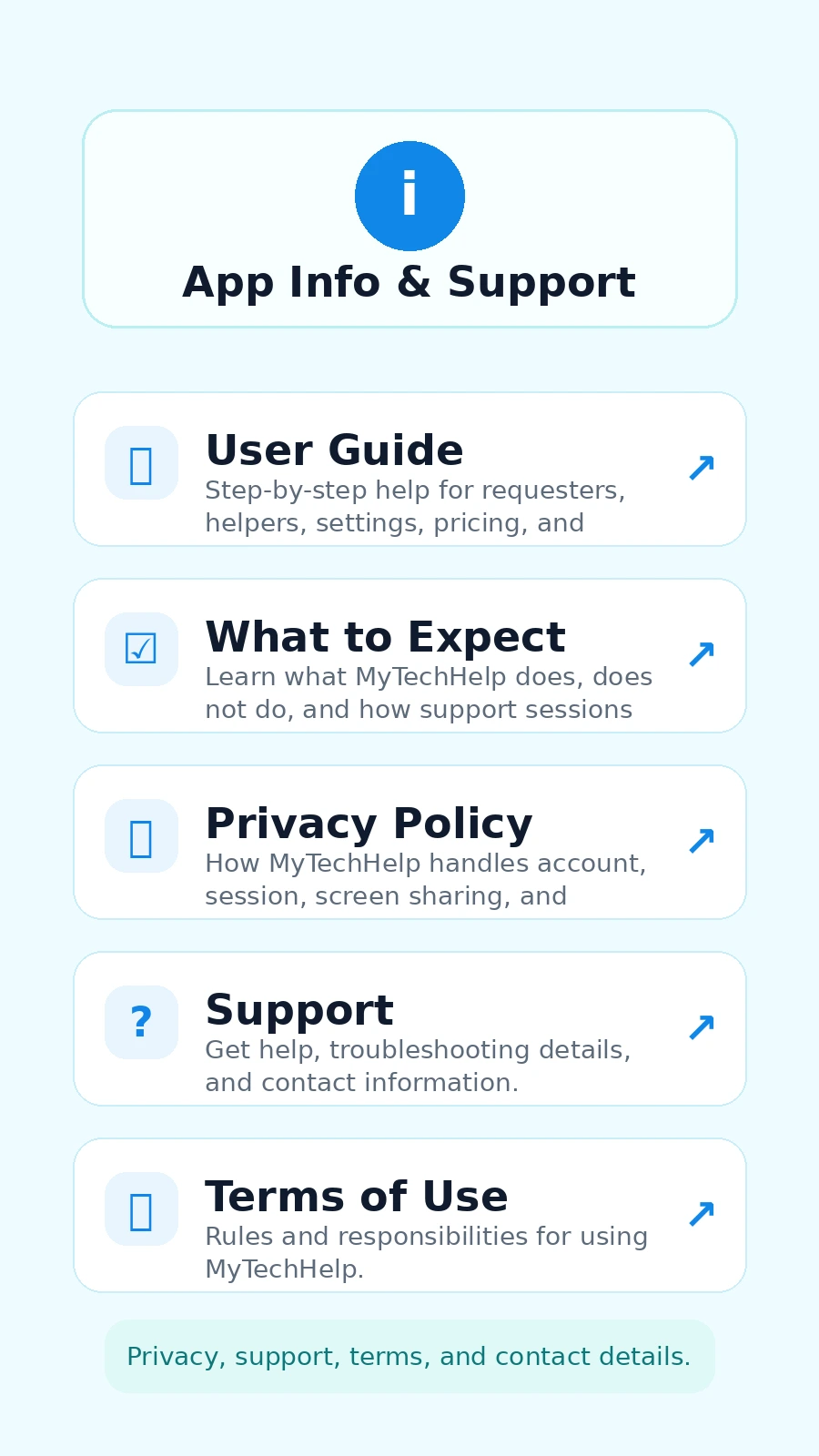
App Info & Support
Find the User Guide, What to Expect, Privacy Policy, Support, and Terms of Use.
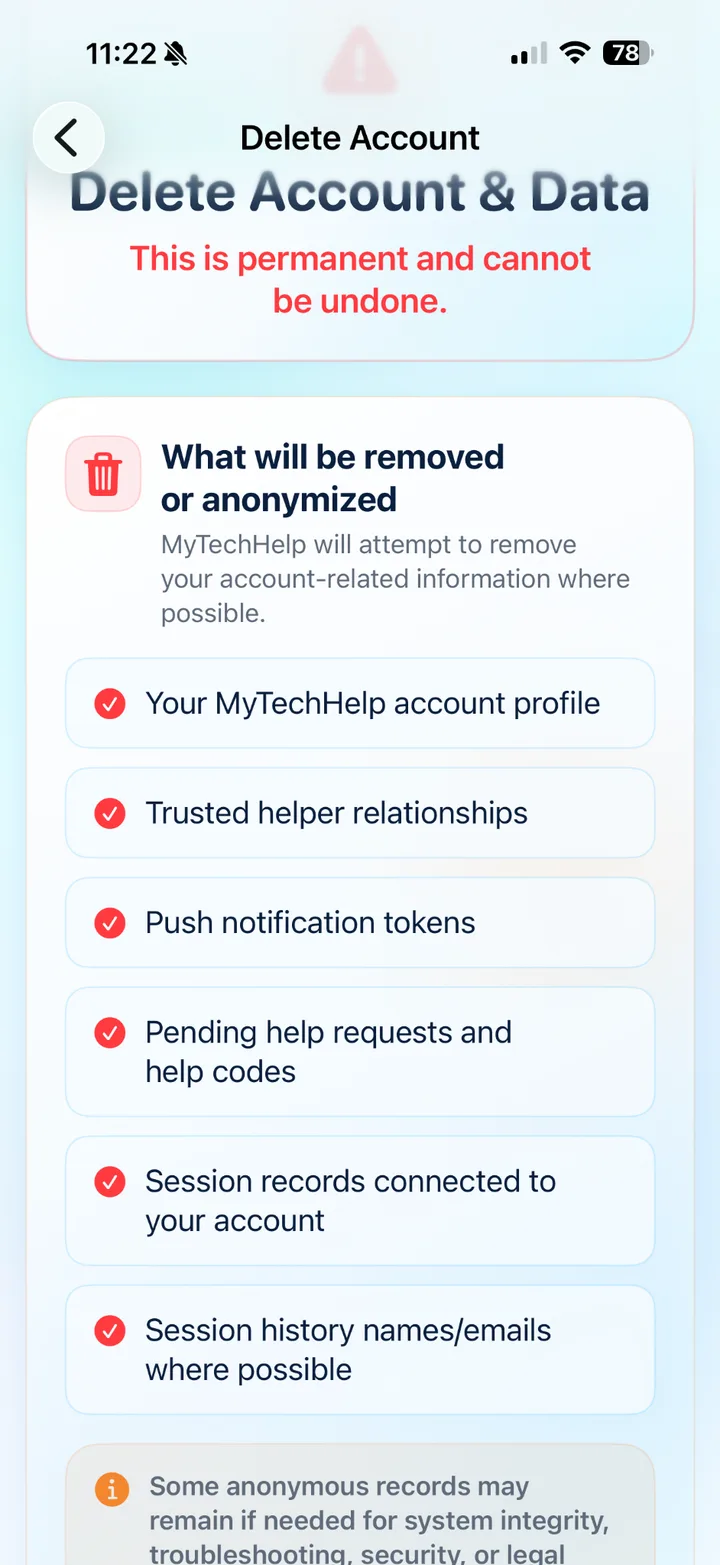
Delete Account & Data
Account deletion is permanent and cannot be undone. Review the information before confirming.
11. Quick Reference
Main features
| Area | Feature | Purpose |
|---|---|---|
| Requester | Get Help Now | Create a secure 6-digit help code. |
| Requester | Trusted Helpers | Ask a saved helper for help without sharing a code. |
| Requester | Previous Requests | Review completed, timed out, cancelled, and declined requests. |
| Helper | Enter Help Code | Connect to a requester using their 6-digit code. |
| Helper | Ping Requester | Notify someone who already trusts you to open MyTechHelp. |
| Helper | Request Queue | Review pending, missed, timed-out, cancelled, and declined requests. |
| Helper | Help History | Review completed sessions and saved Device Checkup details. |
| Settings | Plan & Usage | Check trial, expired trial, Premium, or owner access status. |
| Settings | Support Call Contact | Choose how trusted helpers may call during a support session. |
| Settings | Diagnostics | Export support logs for troubleshooting. |
Screen refresh status dots
During a helper session, the small status dot near the shared-screen viewer shows how fresh the requester screen is.
| Status | Meaning | What to do |
|---|---|---|
| Green | The requester screen updated recently. | Everything is working normally. |
| Orange | The requester screen has not updated for a short time, or the connection may be slower. | Wait a moment, then tap Refresh Screen if needed. |
| Red | The requester screen has not updated for longer than expected. | Ask the requester to confirm screen sharing is still active, check their connection, or restart screen sharing. |
| Gray | The helper is waiting for the requester screen to appear. | The requester may still need to tap Start Screen Share and then Start Broadcast. |
Device Checkup status
Device Checkup gives helpers a quick look at the requester’s device health, connection, storage, memory, and app/device version details.
| Status | What it means | What may need attention |
|---|---|---|
| Good | No obvious device health issues were detected. | Continue the support session normally. |
| Needs attention | MyTechHelp noticed something that could affect support quality. | Review the Device Checkup details before continuing. |
| Poor connection | The network may be weak, unstable, constrained, or expensive/cellular. | Move closer to Wi‑Fi, switch networks, or wait for a better connection. |
| Storage concern | Available device storage is low or the device is heavily used. | Free up storage if apps are slow, updates fail, or the device behaves strangely. |
| Memory or performance concern | The app or device may be under memory pressure, recently restarted, or recovering from a warning. | Close unused apps, restart the device if needed, then try again. |
| Power or temperature concern | Low battery, Low Power Mode, or elevated thermal state may affect performance. | Plug in the device, let it cool if warm, and retry after conditions improve. |